Devices Emulator

The Devices Emulator website emulates data on devices that can be used with platform elements. It is necessary to create a device from the Devices Wizard beforehand. Once created, we will select the device in the Entity Key combo.

Entity key

In the actions menu, the following actions can be performed:

  • Exact search
  • Case sensitive
  • New: Opens the device wizard
  • Execute operation: Opens the new operation wizard. To make this available, it is necessary to have previously selected an Entity key.
Select actions Menu actions

Finally, you can view the logs of the different actions performed from the icon.

Clean log

Subsections of Devices Emulator

Map

In the Map tab, a location will be selected.

Tab Map

Once you know the location, you click on the map.

Tab Map Pin

Operation

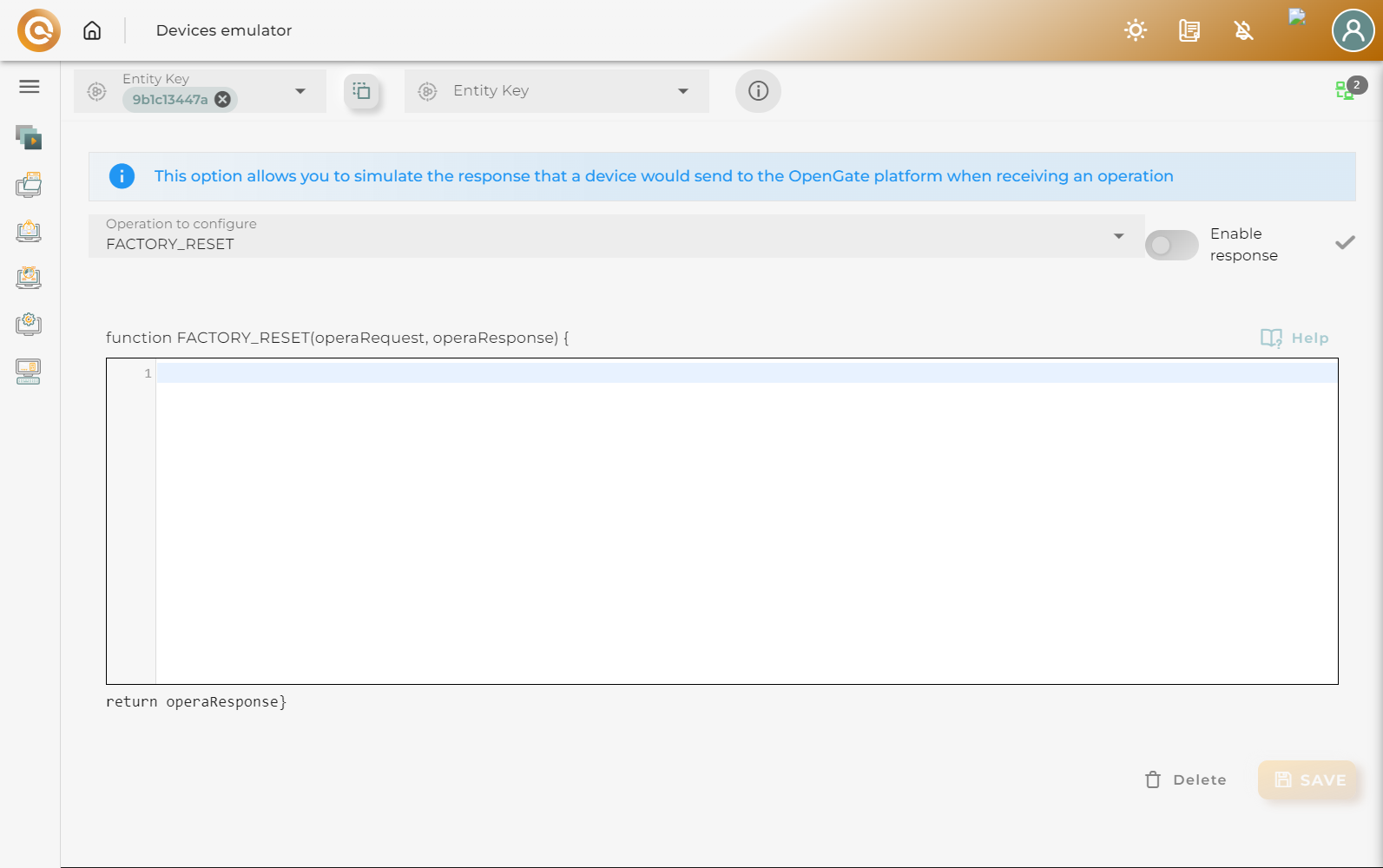
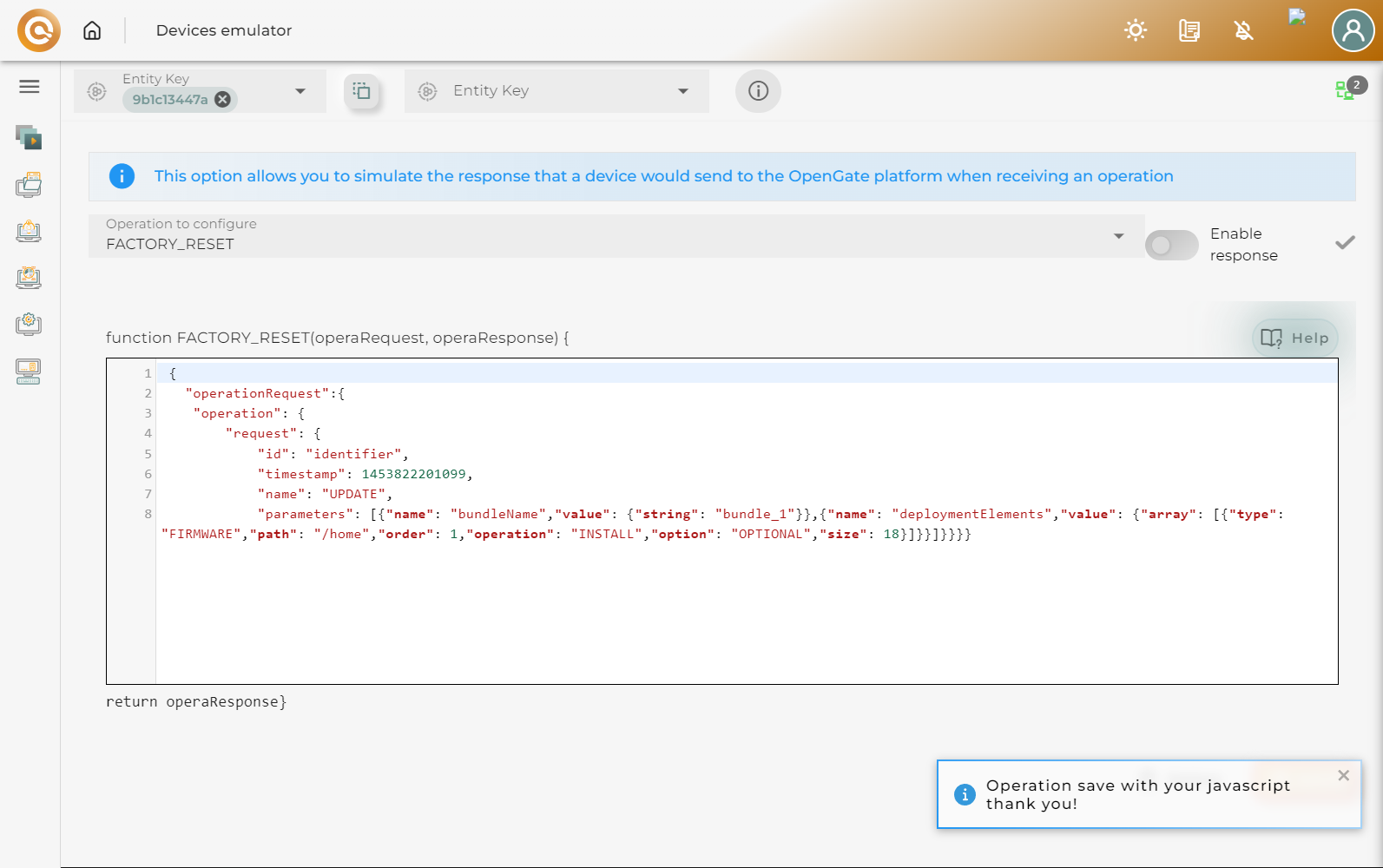
The Operation tab allows you to simulate the response that the device would send to the OpenGate platform when receiving an operation, by selecting a previously created operation.

Tab Sensors

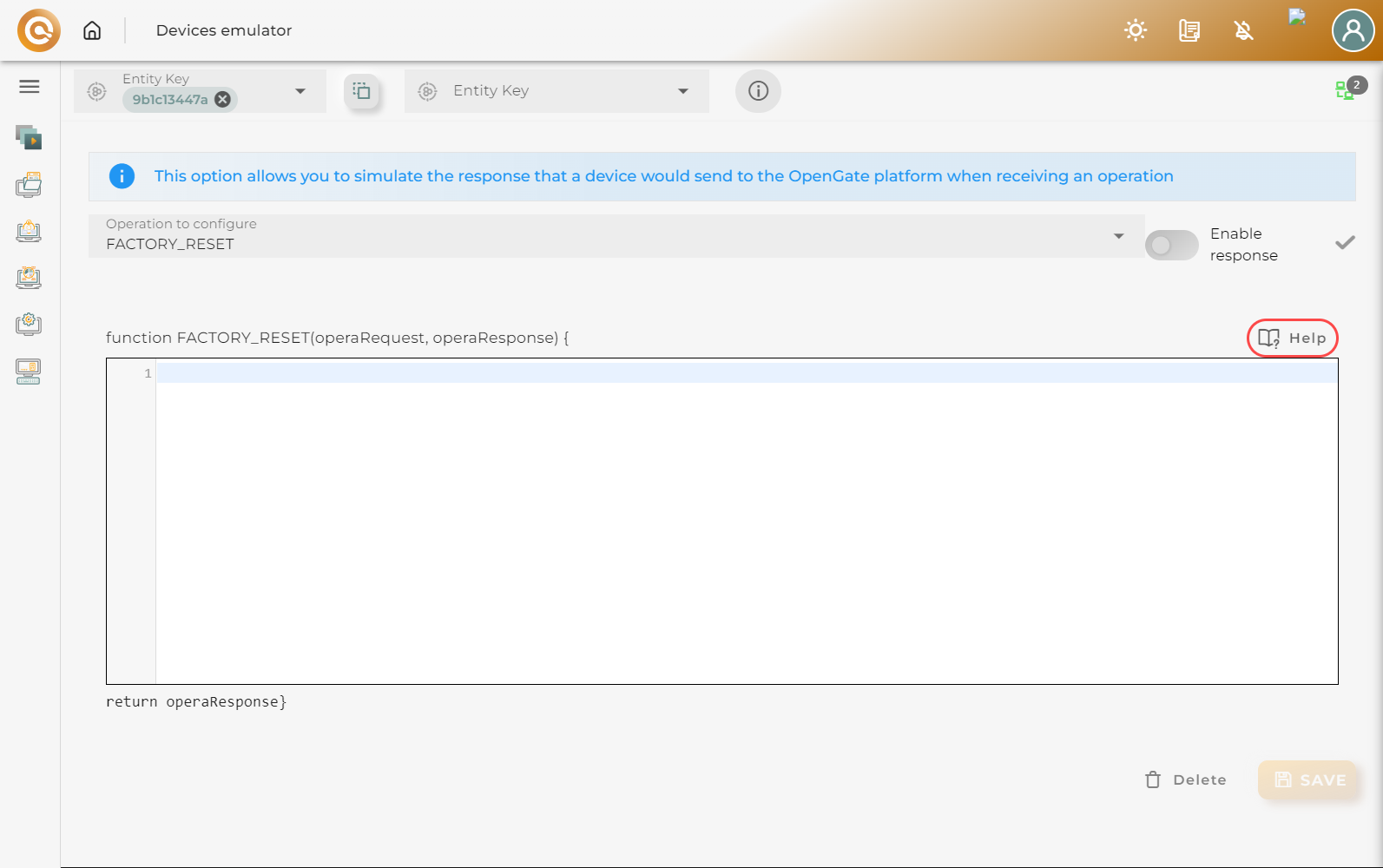
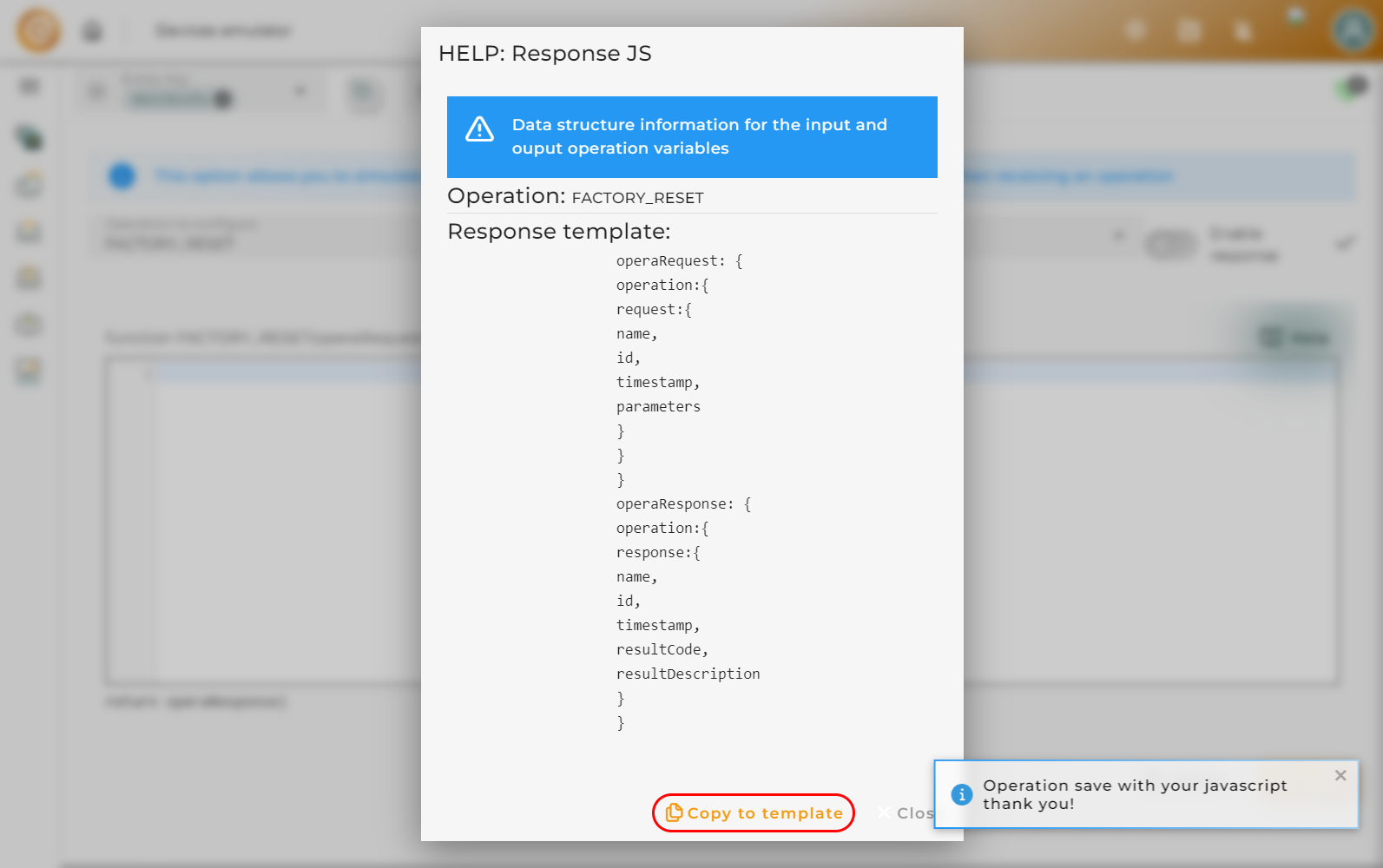
The help opens a modal window that provides information on the data structure for input and output operation variables

Tab Sensors Help

If you click on the copy template button, it will copy the response template.

Tab Sensors

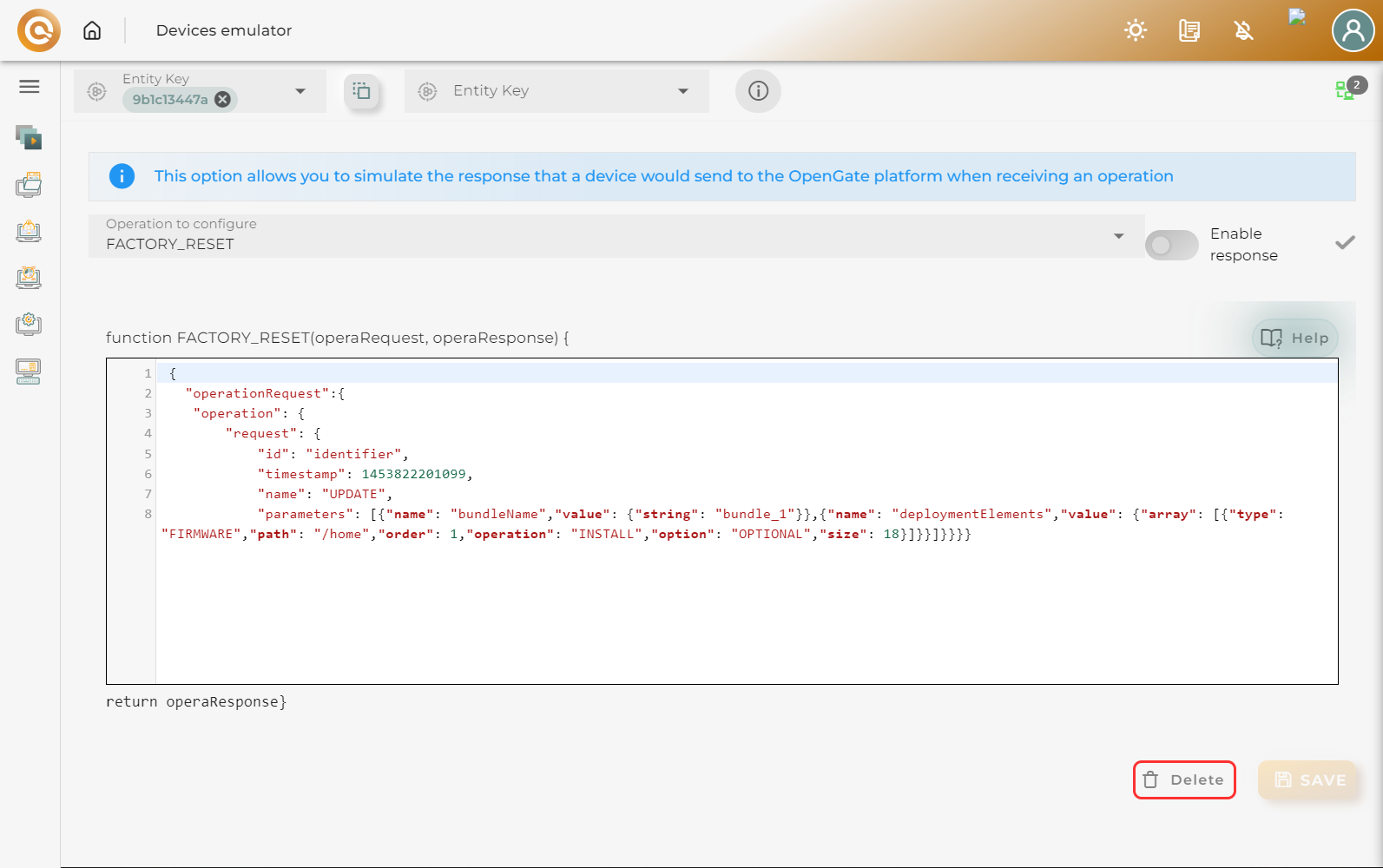
Inside the function, you can create an input and output operation. Using the delete or save buttons, you can delete or save the emulation of that operation.

Tab Sensors Delete Tab Sensors Save

Sensors

In the Sensors tab, you can choose the device datastreams that you want to send to the OpenGate Platform, simulating the transmission that the device would perform. This message will go through the entire workflow in OpenGate.

Tab Sensors

You can delete the previously data.

Tab Sensors clear

System

The System tab allows you to send values from the product datastreams of the selected device to the OpenGate Platform, simulating the transmission that the device would perform. This message will go through the entire workflow in OpenGate.

You can fill in the various fields to emulate device data. If you have filled in data, you can send it using the SEND DATA button.

Tab System