Operation System Support

The OSS (Operation System Support) website contains pre-configured panels that can be used for operational tasks on the platform’s entities, as well as for identifying issues within them.

OSS Section Home

On the home screen, commonly used panels will be displayed, facilitating access to various configurations. Additionally, there will be two charts summarizing alarms and operations in the last 24 hours.

The menu can be collapsed to maximize screen space by clicking on the bottom part of the navigation menu.

OSS Section Collapsed menu

Panels

Each panel embeds one or more widgets that are also used in Workspaces & Dashboards, thus ensuring a unified configuration and user experience.

Each page provides access to corresponding documentation, which will direct the user to the relevant widgets.

Sections

Within the configurations, three major sections can be distinguished:

  • Operations: This section contains information related to operations executed and planned on the platform.
  • Alerts and Incidents: This section holds information about platform alarms and tickets.
  • Entities: In this section, one can navigate through various types of entities.

Configurations


Subsections of Operation System Support

Subsections of Entities

Assets Administration

From here, you can view and/or manage the assets of our organization.

How it works

Assets Administration

This panel is composed of the following widget:

The navigation bar contains the actions that can be performed:

  • Filter allows applying a filter on the list.
  • Refresh refreshes the content of the list.
  • Create asset provides quick access to the asset creation wizard.
  • Action menu displays all available actions (the same as those on the widget).
Assets Administration Actions

Section Configuration

From the Action Menu, you can access the configuration of the widget corresponding to the section.

  • Configuration opens the widget’s configuration.
  • Default allows resetting the configuration to its initial state.

Devices Administration

From here, you can view and/or manage the devices of our organization.

How it works

Devices Administration

This panel is composed of the following widget:

In the navigation bar are the actions that can be performed:

  • Filter allows you to apply a filter on the list.
  • Refresh refreshes the content of the list.
  • Create device provides quick access to the device creation wizard.
  • Action menu displays all the available actions (the same as those on the widget).
Devices Administration Actions

Section Configuration

From the Action Menu, you can access the configuration of the widget corresponding to the section.

  • Configuration opens the widget’s configuration.
  • Default allows resetting the configuration to its initial state.

Maps

From here, you can view the devices of our organization on the map.

How it works

Maps Administration

This panel is composed of the following widget:

In the navigation bar are the actions that can be performed:

  • Filter allows you to apply a filter to the list.
  • Refresh refreshes the content of the list.
  • Action menu displays all the available actions (the same as those on the widget).
Maps Administration Actions

Section Configuration

From the Action Menu, you can access the configuration of the widget corresponding to the section.

  • Configuration opens the widget’s configuration.
  • Default allows resetting the configuration to its initial state.

Subscribers Administration

From here, you can view and/or manage the subscribers of our organization.

How it works

Subscribers Administration

This panel is composed of the following widget:

In the navigation bar are the actions that can be performed:

  • Filter allows you to apply a filter to the list.
  • Refresh refreshes the content of the list.
  • Create Subscriber provides quick access to the subscriber creation wizard.
  • Action Menu displays all the available actions (the same as those on the widget).
Subscribers Administration Actions

Section Configuration

From the Action Menu, you can access the configuration of the widget corresponding to the section.

  • Configuration opens the widget’s configuration.
  • Default allows resetting the configuration to its initial state.

Subscriptions Administration

From this interface, you can view and/or manage the subscriptions of our organization.

How it works

Subscriptions Administration

This panel consists of the following widget:

In the navigation bar, you will find the actions that can be executed:

  • Filter allows you to apply a filter to the list.
  • Refresh refreshes the content of the list.
  • Create Subscription provides quick access to the subscription creation wizard.
  • Action Menu displays all available actions (the same as those in the widget).
Subscriptions Administration Actions

Section Configuration

From the Action Menu, you can access the configuration of the widget corresponding to the section.

  • Configuration opens the widget’s configuration.
  • Default allows resetting the configuration to its initial state.

Subsections of Notices and incidents

Alarms

Here you can consult the alarms of the platform.

How it works

Alarms Administration

This panel is composed of the following widget:

In the navigation bar, the following actions can be performed:

  • Filter allows you to apply a filter to the list
  • Refresh updates the content of the list
  • Action Menu displays all available actions (the same as those of the widget)
Alarms Administration Actions

Section Configuration

From the Action Menu, you can access the configuration of the widget corresponding to the section.

  • Configuration opens the widget’s configuration.
  • Default allows resetting the configuration to its initial state.

Alarms Summary

Here you can consult the alarms of the platform in graphical form.

How it works

Alarms Summary Administration

This panel is composed of the following widget:

In the navigation bar, the following actions can be performed:

  • Filter allows you to apply a filter to the graphs
  • Refresh updates the content of the graphs
  • Action Menu displays all available actions (the same as those of the widget)
Alarms Summary Administration Actions

Section Configuration

From the Action Menu, you can access the configuration of the widget corresponding to the section.

  • Configuration opens the widget’s configuration.
  • Default allows resetting the configuration to its initial state.

Tickets

Here you can consult the tickets of the platform.

How it works

Tickets Administration

This panel is composed of the following widget:

In the navigation bar, the following actions can be performed:

  • Filter allows you to apply a filter to the list
  • Refresh updates the content of the list
  • Create Ticket quick access to the new ticket creation form
  • Action Menu displays all available actions (the same as those of the widget)
Tickets Administration Actions

Section Configuration

From the Action Menu, you can access the configuration of the widget corresponding to the section.

  • Configuration opens the widget’s configuration.
  • Default allows resetting the configuration to its initial state.

Tickets Summary

Here you can graphically consult the tickets of the platform.

How it works

Tickets Summary Administration

This panel is composed of the following widget:

In the navigation bar, the following actions are available:

  • Filter allows you to apply a filter to the charts
  • Refresh updates the content of the charts
  • Action Menu displays all available actions (the same as those of the widget)
Tickets Summary Administration Actions

Section Configuration

From the Action Menu, you can access the configuration of the widget corresponding to the section.

  • Configuration opens the widget’s configuration.
  • Default allows resetting the configuration to its initial state.

Subsections of Operations

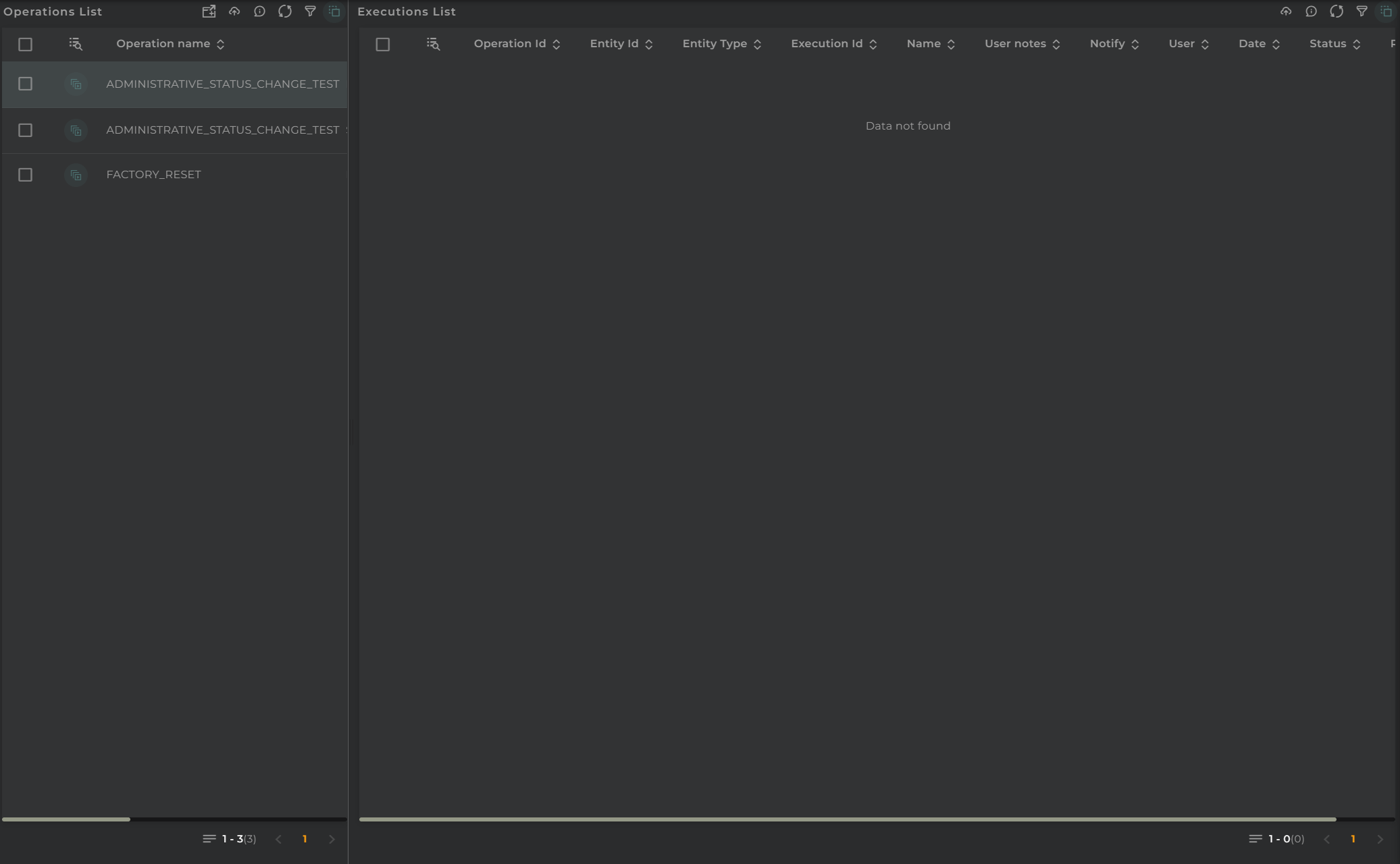
Operations List

From this interface, you can view and execute operations on devices.

How it works

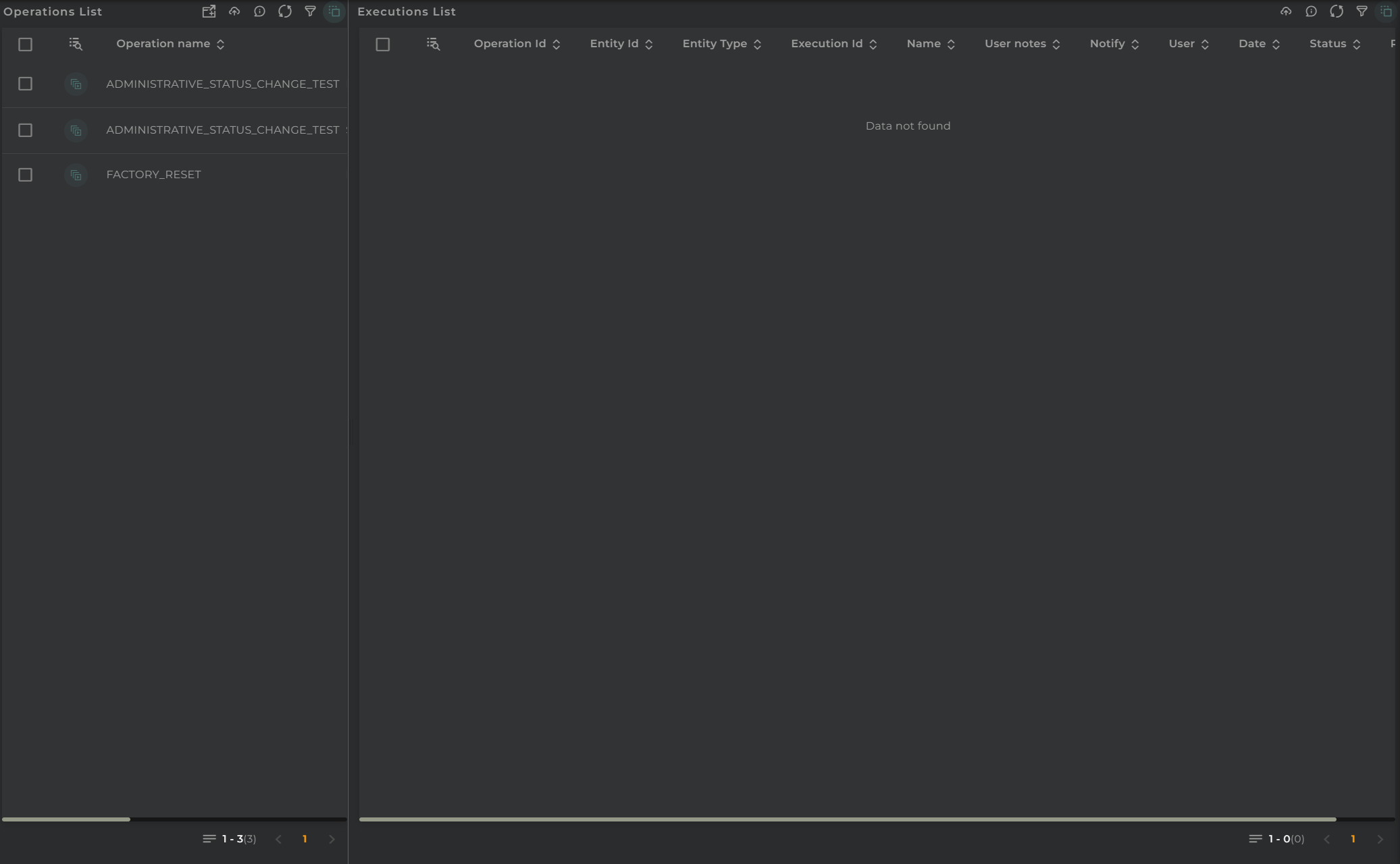
Operations Administration

This panel is composed of the following widgets:

Both panels are linked, so if we select an operation in the upper list, the results in the executions list will be filtered for the selected operations.

Operations Navigation Bar

In the navigation bar are the actions that can be performed:

  • Filter allows you to apply a filter to the list.
  • Refresh refreshes the content of the list.
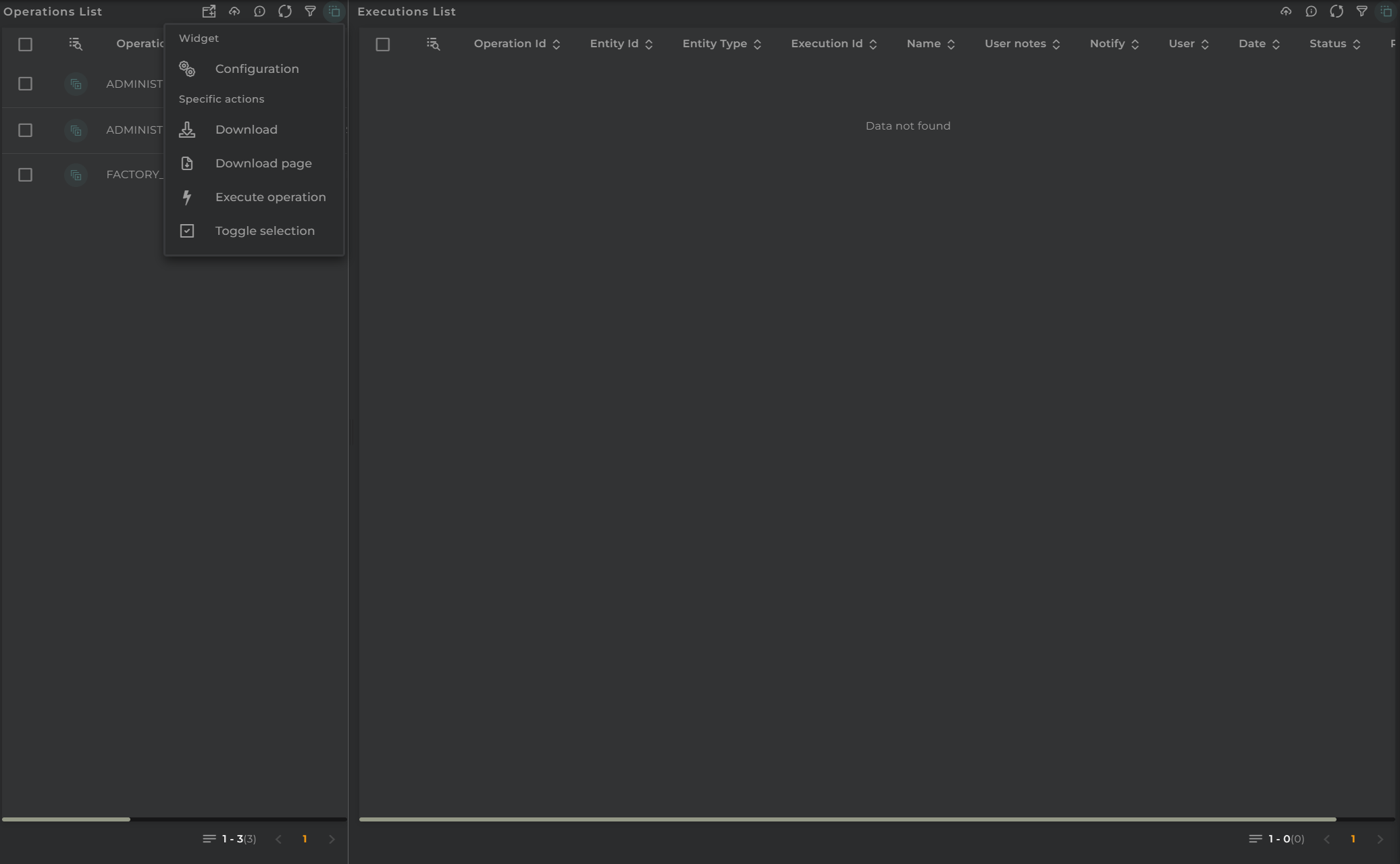
  • Action Menu displays all available actions (the same as those in the widget).
Operations List Actions

Executions Navigation Bar

In the navigation bar are the actions that can be performed:

  • In Progress/History indicates whether to list ongoing operations or those that have been completed.
  • Resource Type in the case of displaying ongoing executions, you must specify whether you want them for devices, subscribers, or subscriptions.
  • Filter allows you to apply a filter to the list.
  • Refresh refreshes the content of the list.
  • Action Menu displays all available actions (the same as those in the widget).
Executions List Actions

Section Configuration

From the Action Menu, you can access the configuration of the widget corresponding to the section.

  • Configuration opens the widget’s configuration.
  • Default allows resetting the configuration to its initial state.

Operations Summary

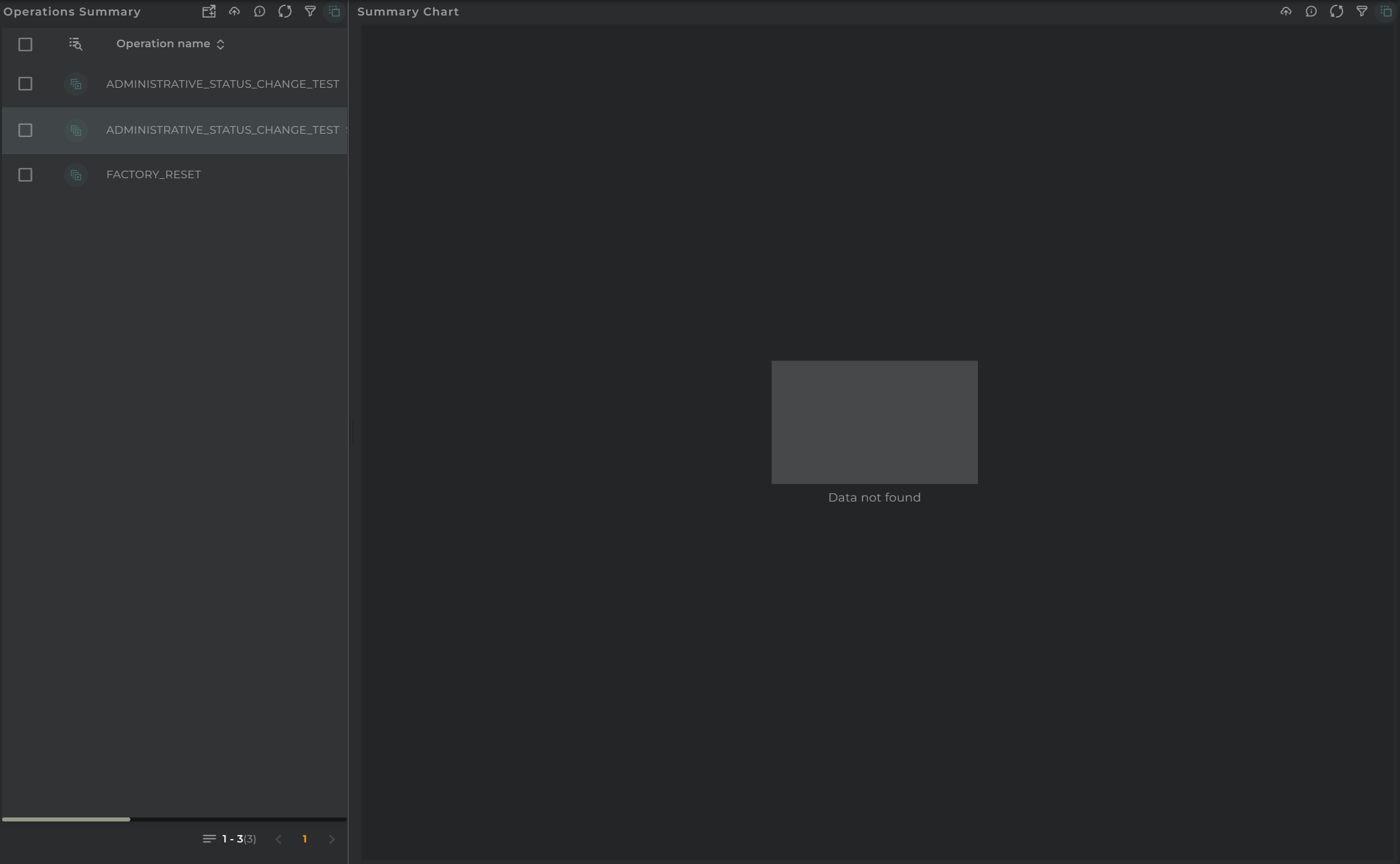
From this interface, you can view a summary of the operations on devices.

How it works

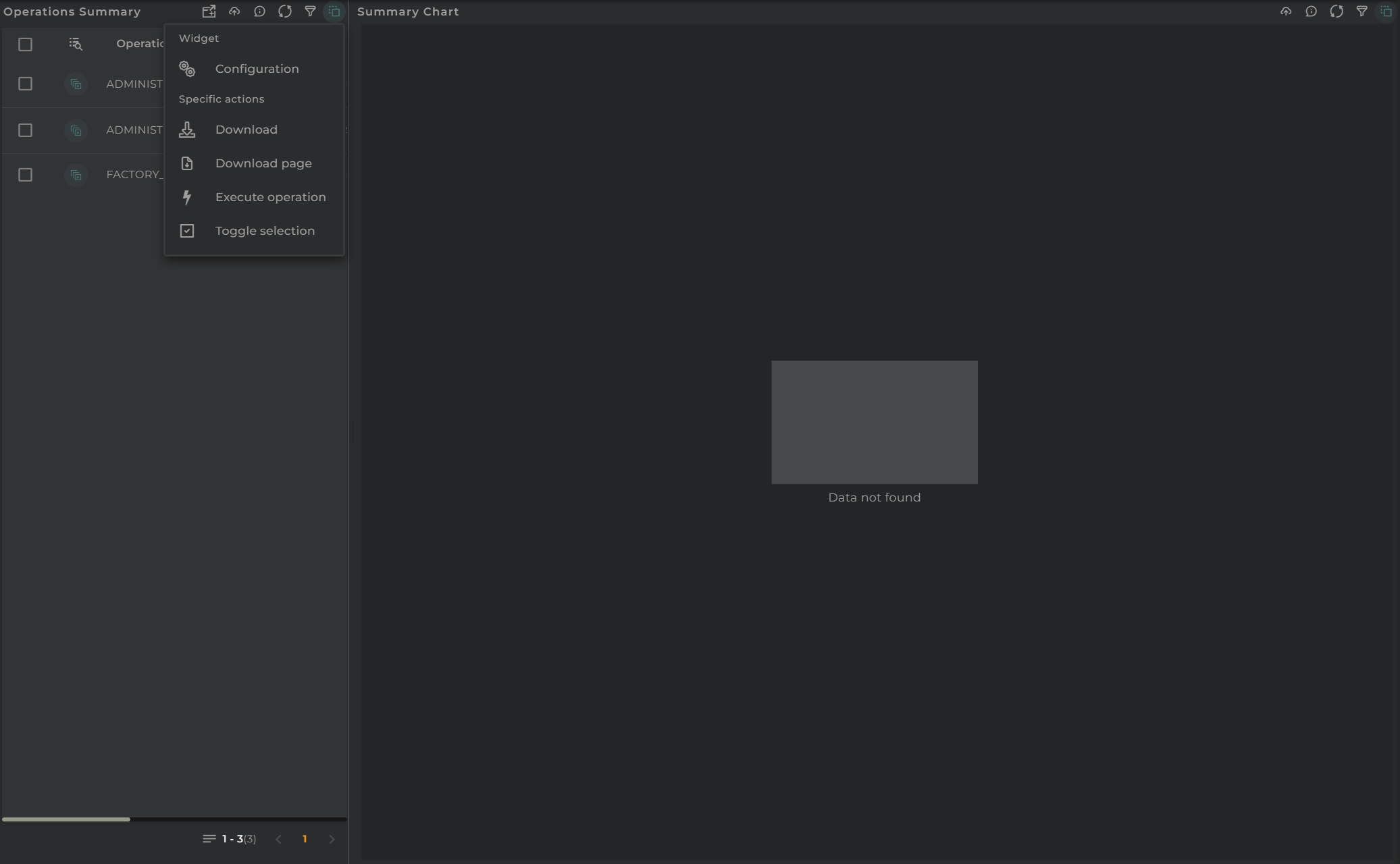
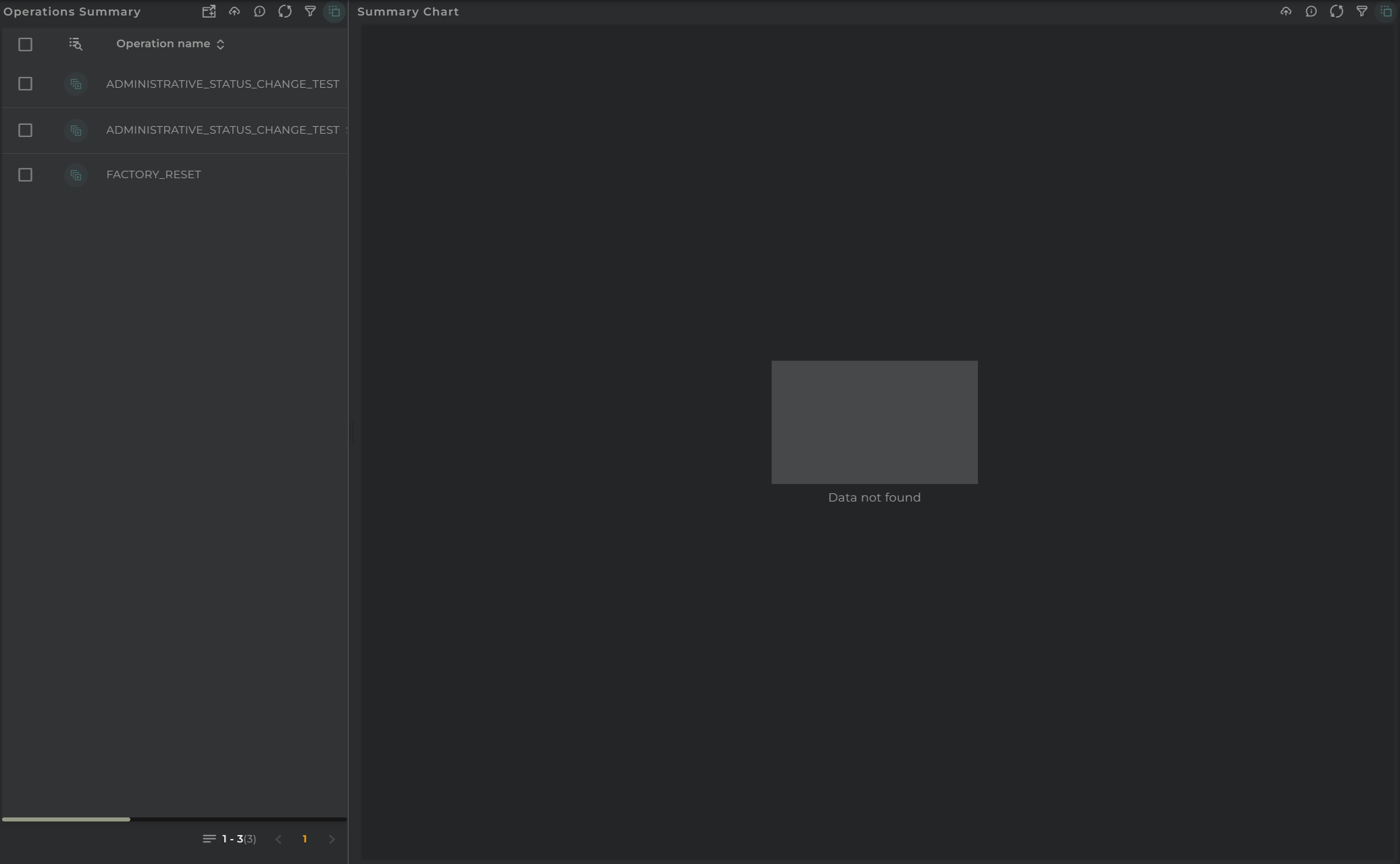
Operations Summary Administration

This panel is composed of the following widgets:

Both panels are linked, so if we select an operation in the upper list, the results in the summary will be filtered for the selected operations.

Operations Navigation Bar

In the navigation bar, you can find the actions that can be performed:

  • Filter allows you to apply a filter to the list.
  • Refresh updates the content of the list.
  • Action Menu displays all available actions (the same as those in the widget).
Operations Summary List Actions

Summary Navigation Bar

In the navigation bar, you can find the actions that can be performed:

  • In Progress/History indicates whether to display ongoing operations or those that have been completed.
  • Resource Type in the case of displaying ongoing executions, you must specify whether you want them for devices, subscribers, or subscriptions.
  • Filter allows you to apply a filter.
  • Refresh updates the content.
  • Execute Operation opens the operation launcher.
  • Action Menu displays all available actions (the same as those in the widget).
Operations Summary Actions

Section Configuration

From the Action Menu, you can access the configuration of the widget corresponding to the section.

  • Configuration opens the widget’s configuration.
  • Default allows resetting the configuration to its initial state.

Periodic Operations

From this interface, you can view a summary of the configured periodic operations as well as the scheduling of the next executions.

How it Works

Tasks Administration

This panel is composed of the following widgets:

IMPORTANT NOTE: To view the calendar data, at least one periodic operation must be selected from the list.

Periodic Operations Navigation Bar

In the navigation bar, you can find the actions that can be performed:

  • Filter allows you to apply a filter to the list.
  • Refresh updates the content of the list.
  • Action Menu displays all available actions (the same as those in the widget).
Tasks List Actions

Summary Navigation Bar

In the navigation bar, you can find the actions that can be performed:

  • Refresh updates the content.
  • Action Menu displays all available actions (the same as those in the widget).
Tasks Actions

Section Configuration

From the Action Menu, you can access the configuration of the widget corresponding to the section.

  • Configuration opens the widget’s configuration.
  • Default allows resetting the configuration to its initial state.