Subsections of Operations

Operations List

From this interface, you can view and execute operations on devices.

How it works
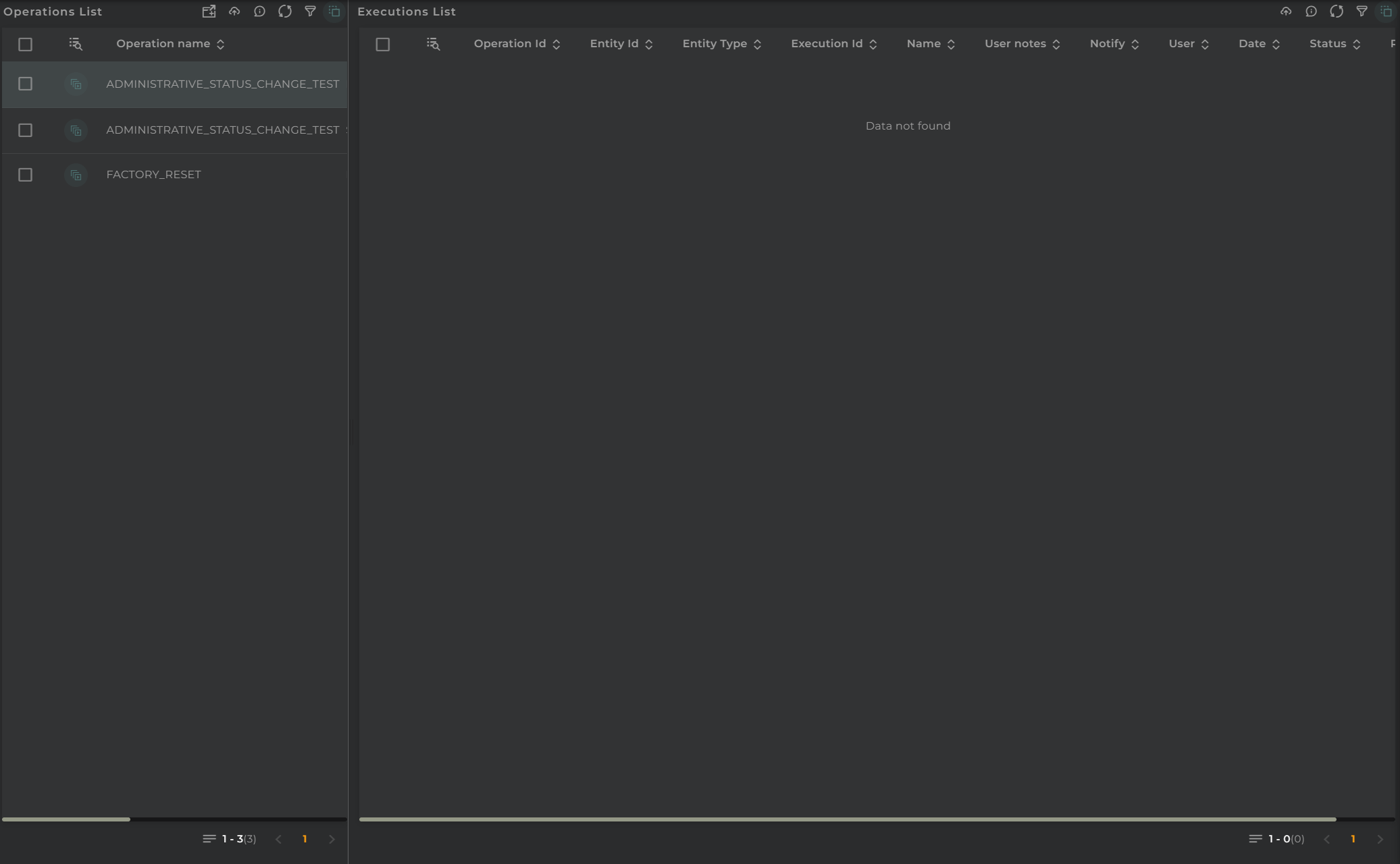
Operations Administration

This panel is composed of the following widgets:

Both panels are linked, so if we select an operation in the upper list, the results in the executions list will be filtered for the selected operations.

Operations Navigation Bar

In the navigation bar are the actions that can be performed:

  • Filter allows you to apply a filter to the list.
  • Refresh refreshes the content of the list.
  • Action Menu displays all available actions (the same as those in the widget).
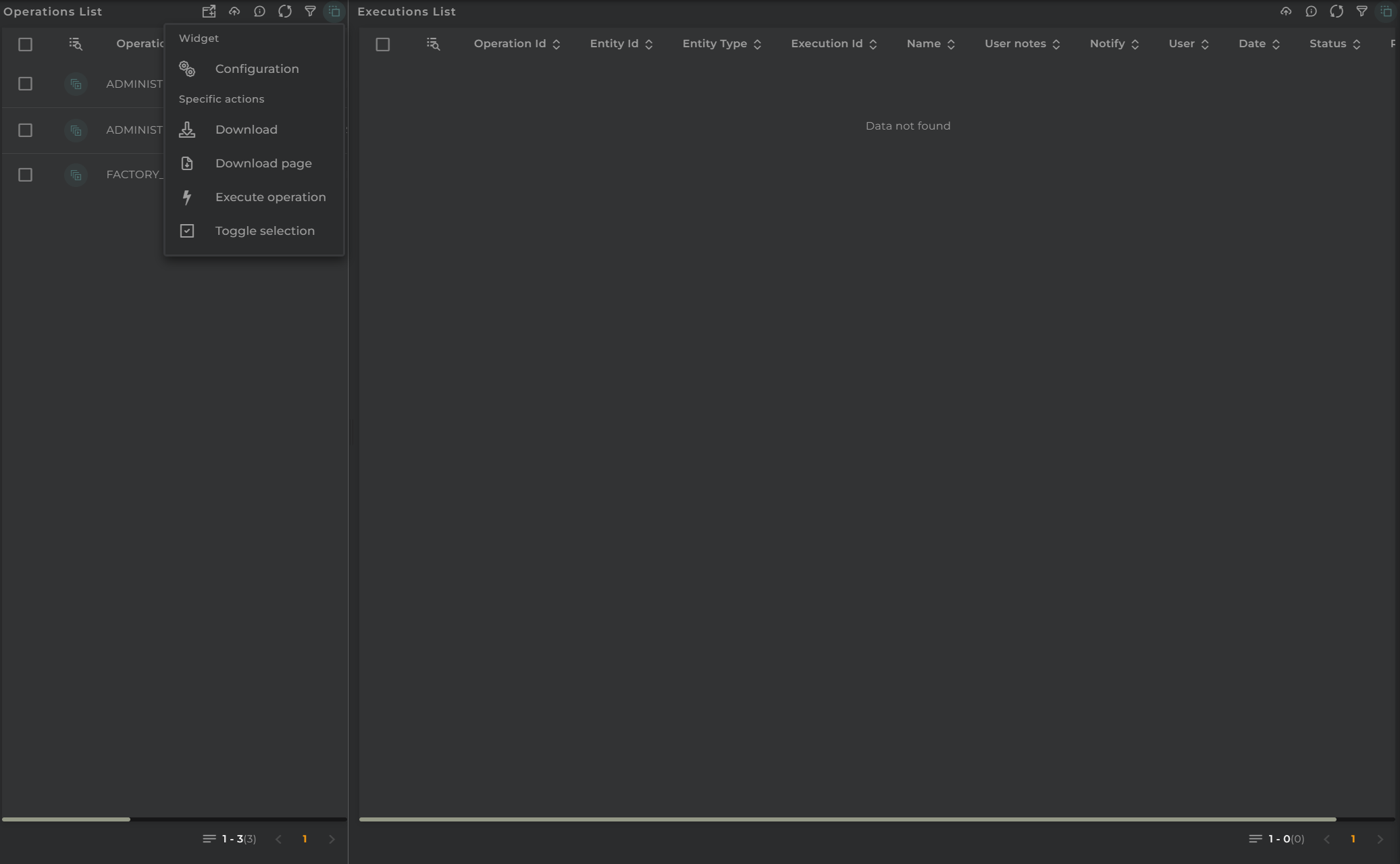
Operations List Actions

Executions Navigation Bar

In the navigation bar are the actions that can be performed:

  • In Progress/History indicates whether to list ongoing operations or those that have been completed.
  • Resource Type in the case of displaying ongoing executions, you must specify whether you want them for devices, subscribers, or subscriptions.
  • Filter allows you to apply a filter to the list.
  • Refresh refreshes the content of the list.
  • Action Menu displays all available actions (the same as those in the widget).
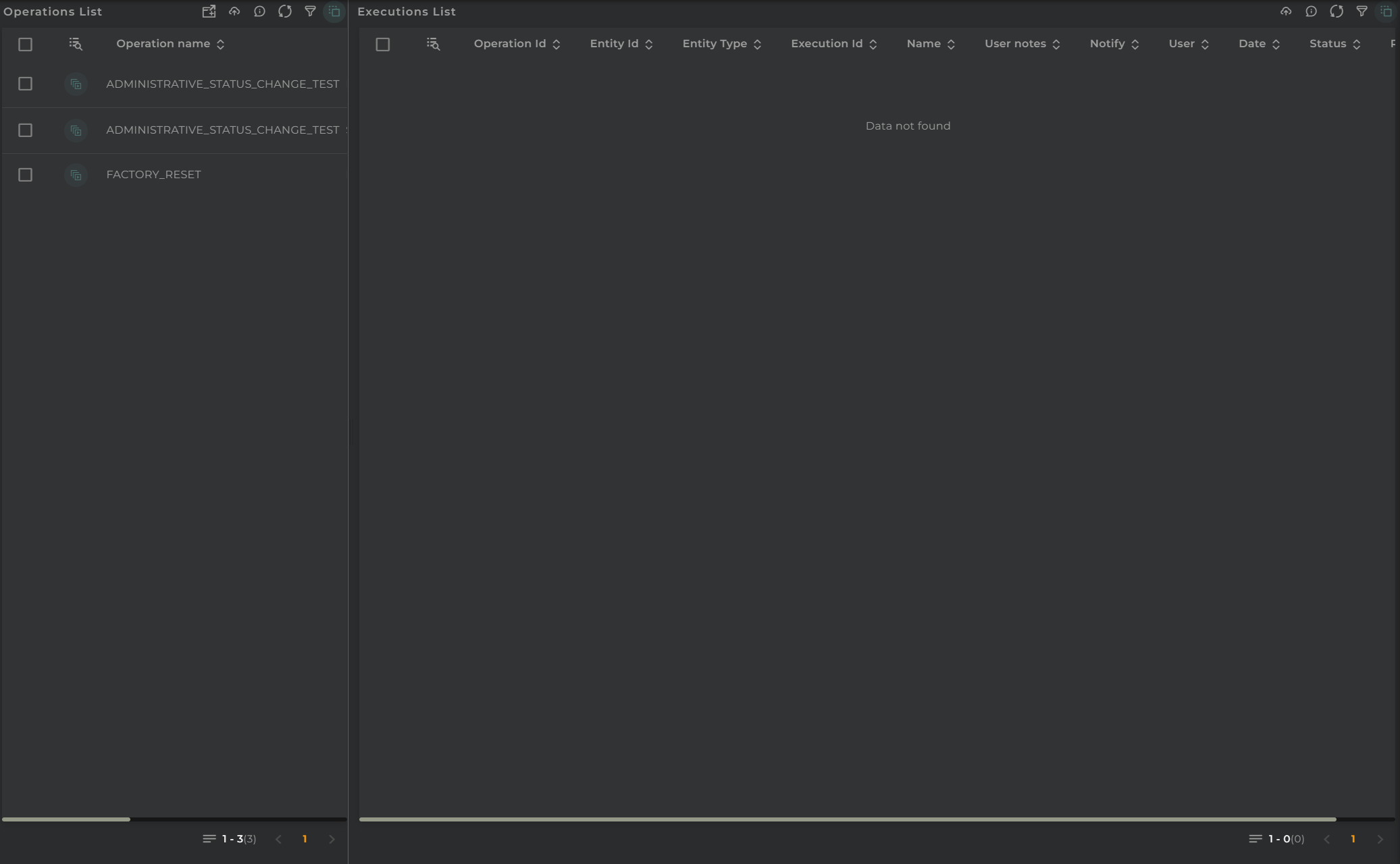
Executions List Actions

Section Configuration

From the Action Menu, you can access the configuration of the widget corresponding to the section.

  • Configuration opens the widget’s configuration.
  • Default allows resetting the configuration to its initial state.
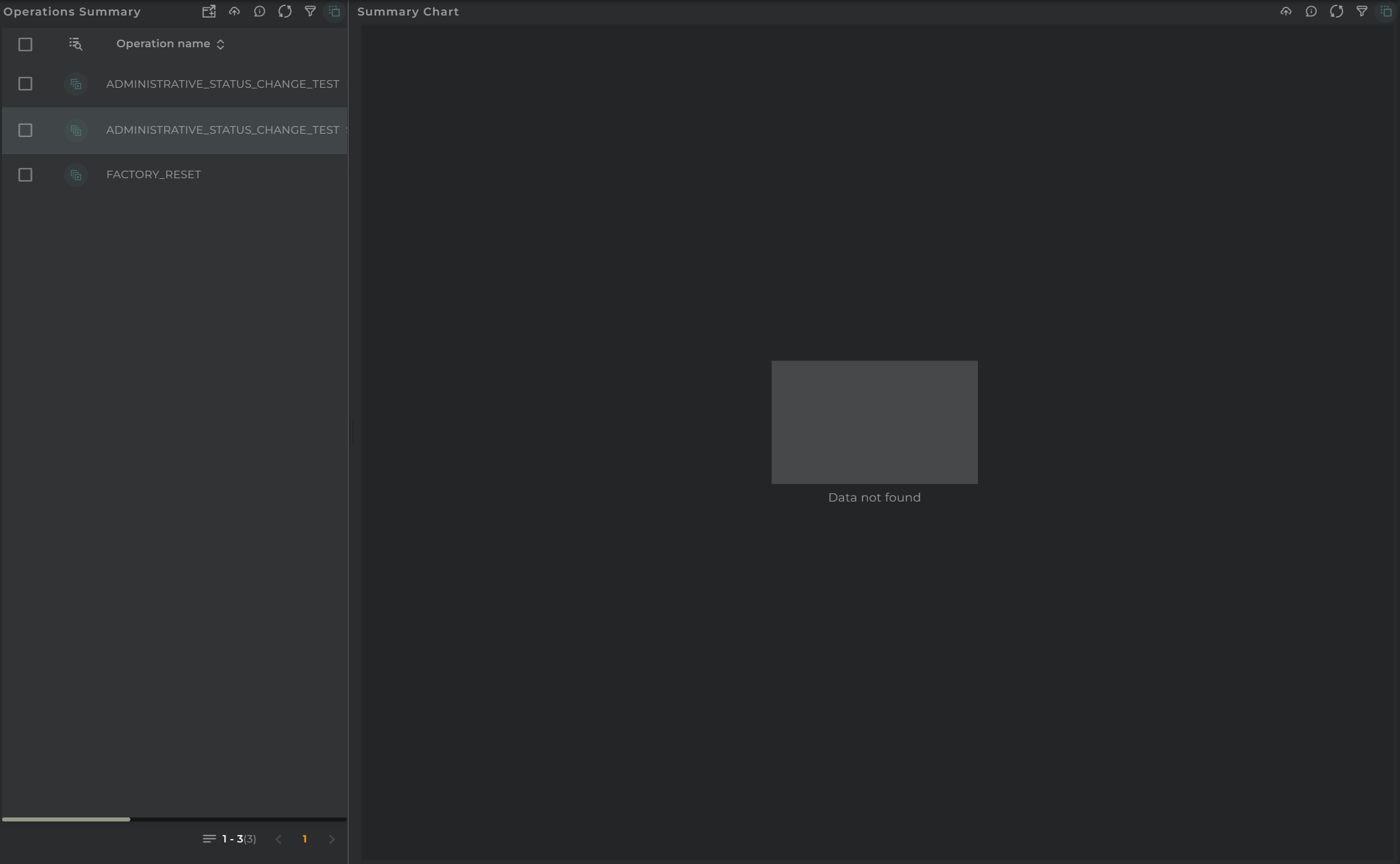
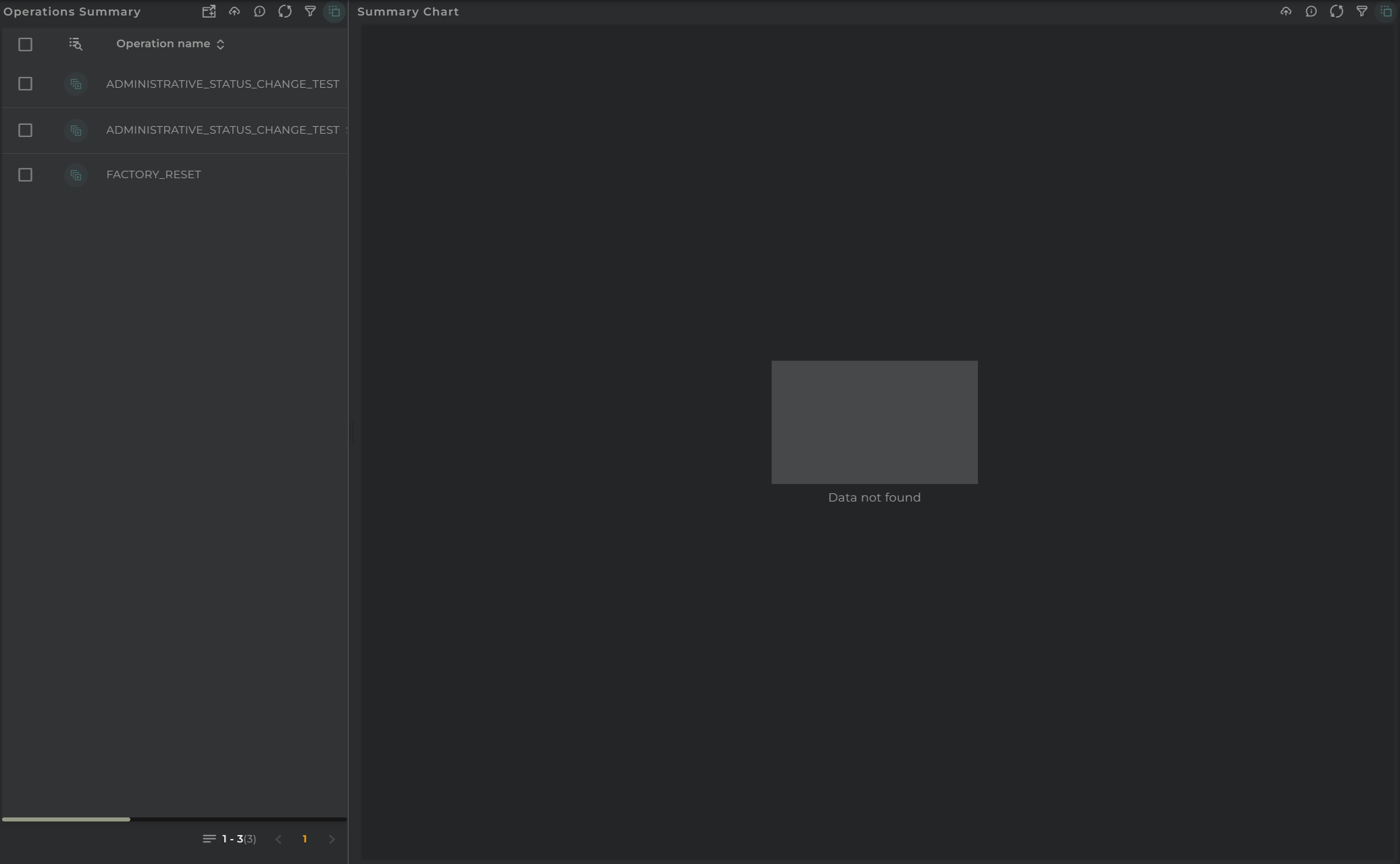
Operations Summary

From this interface, you can view a summary of the operations on devices.

How it works

Operations Summary Administration

This panel is composed of the following widgets:

Both panels are linked, so if we select an operation in the upper list, the results in the summary will be filtered for the selected operations.

Operations Navigation Bar

In the navigation bar, you can find the actions that can be performed:

  • Filter allows you to apply a filter to the list.
  • Refresh updates the content of the list.
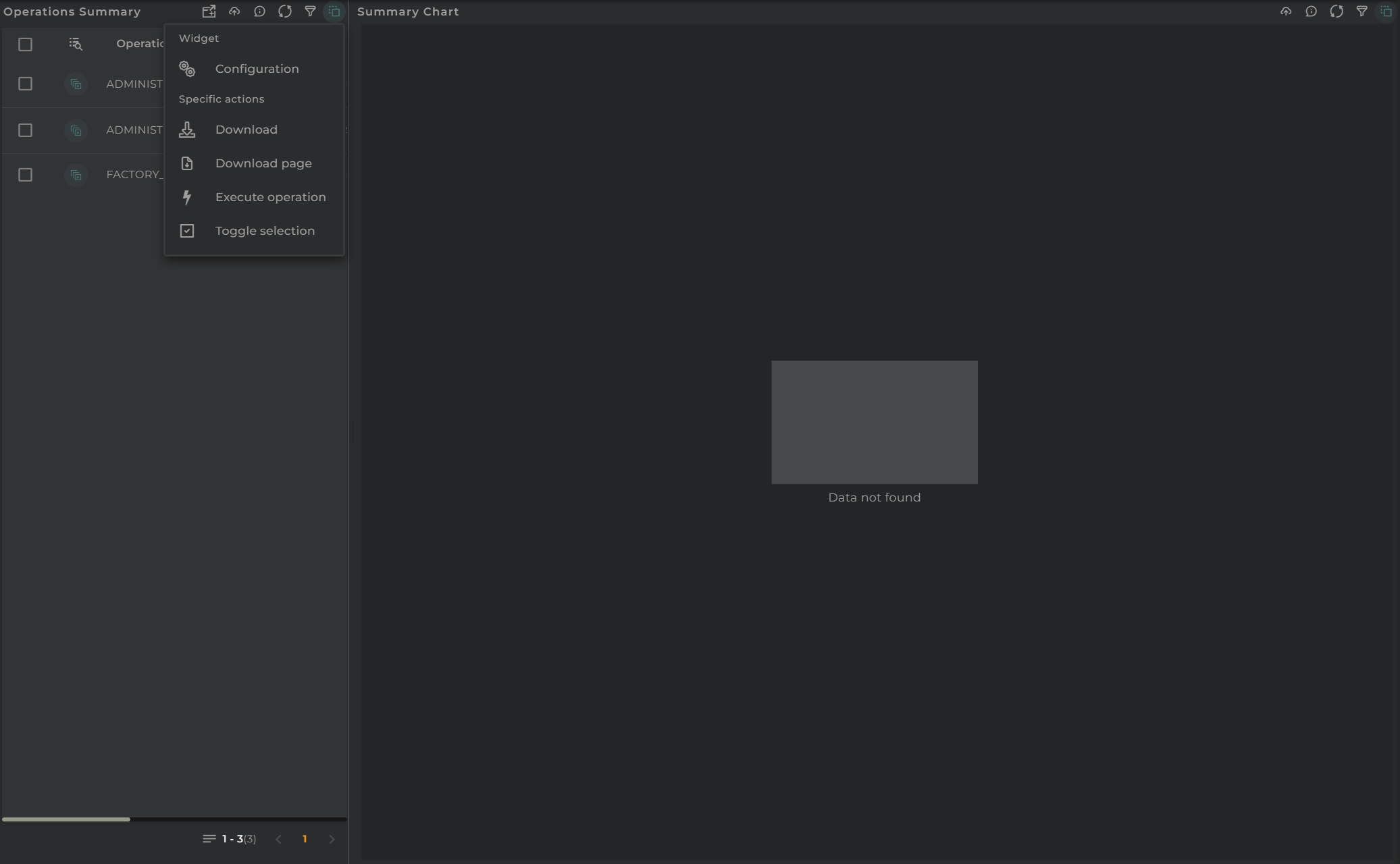
  • Action Menu displays all available actions (the same as those in the widget).
Operations Summary List Actions

Summary Navigation Bar

In the navigation bar, you can find the actions that can be performed:

  • In Progress/History indicates whether to display ongoing operations or those that have been completed.
  • Resource Type in the case of displaying ongoing executions, you must specify whether you want them for devices, subscribers, or subscriptions.
  • Filter allows you to apply a filter.
  • Refresh updates the content.
  • Execute Operation opens the operation launcher.
  • Action Menu displays all available actions (the same as those in the widget).
Operations Summary Actions

Section Configuration

From the Action Menu, you can access the configuration of the widget corresponding to the section.

  • Configuration opens the widget’s configuration.
  • Default allows resetting the configuration to its initial state.
Periodic Operations

From this interface, you can view a summary of the configured periodic operations as well as the scheduling of the next executions.

How it Works

Tasks Administration

This panel is composed of the following widgets:

IMPORTANT NOTE: To view the calendar data, at least one periodic operation must be selected from the list.

Periodic Operations Navigation Bar

In the navigation bar, you can find the actions that can be performed:

  • Filter allows you to apply a filter to the list.
  • Refresh updates the content of the list.
  • Action Menu displays all available actions (the same as those in the widget).
Tasks List Actions

Summary Navigation Bar

In the navigation bar, you can find the actions that can be performed:

  • Refresh updates the content.
  • Action Menu displays all available actions (the same as those in the widget).
Tasks Actions

Section Configuration

From the Action Menu, you can access the configuration of the widget corresponding to the section.

  • Configuration opens the widget’s configuration.
  • Default allows resetting the configuration to its initial state.