Custom Table

Custom tables allow you to display data in a list format based on logic encoded by the user.

How it Works

Custom table widget

Once the logic for data retrieval is entered, the data will be displayed in the table.

What sets the custom table apart is that the data source can be external, internal, both, or even fabricated. Moreover, custom charts can be mixed in, and additional information can be included in the expandable panel.

Custom table expanded row

Configuration

General

  • Boxed: widget will be displayed with background in dahsboard.
  • About: widget description in Markdown format.
  • Title: widget title. It can be configured to remain fixed in the widget or only be displayed when it receives focus.
  • Toolbar: configures the behavior of the widget bar on the dashboard, allowing you to hide it, hide it when not in use, or leave it always visible.
  • Refresh Frequency: allows configuring the data refresh frequency displayed in the list.
  • Extra actions: allows user to add new specific actions to the widget with your own code.
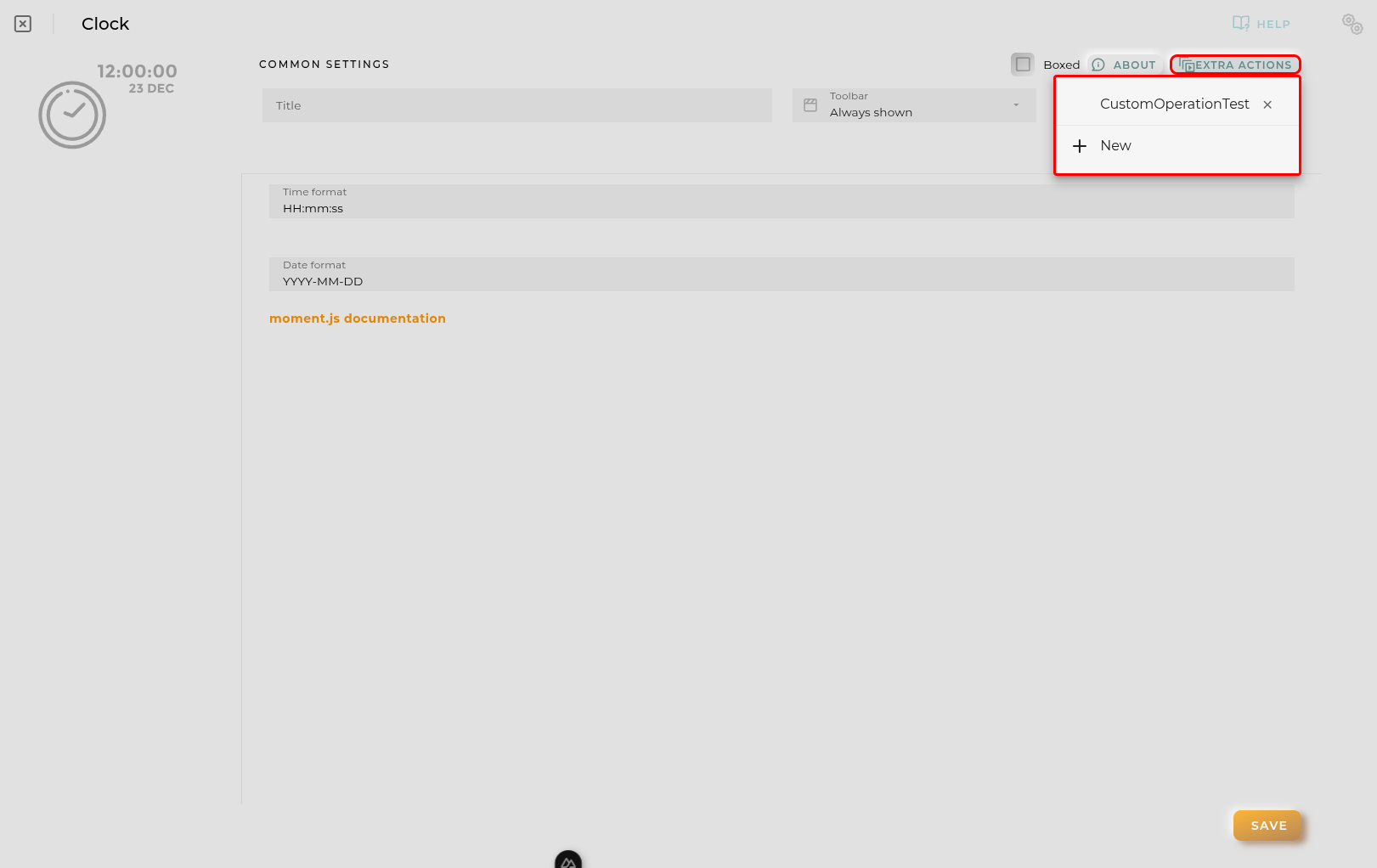
Extra action config

You can add a new one by pressing the New button.

Once you added a custom action it can be modified later by pressing the name in the list.

In order to remove the custom action click the delete icon button on the right.

In extra actions you can write your own code were you can open other dashboards, entities dashboards or execute wizards.
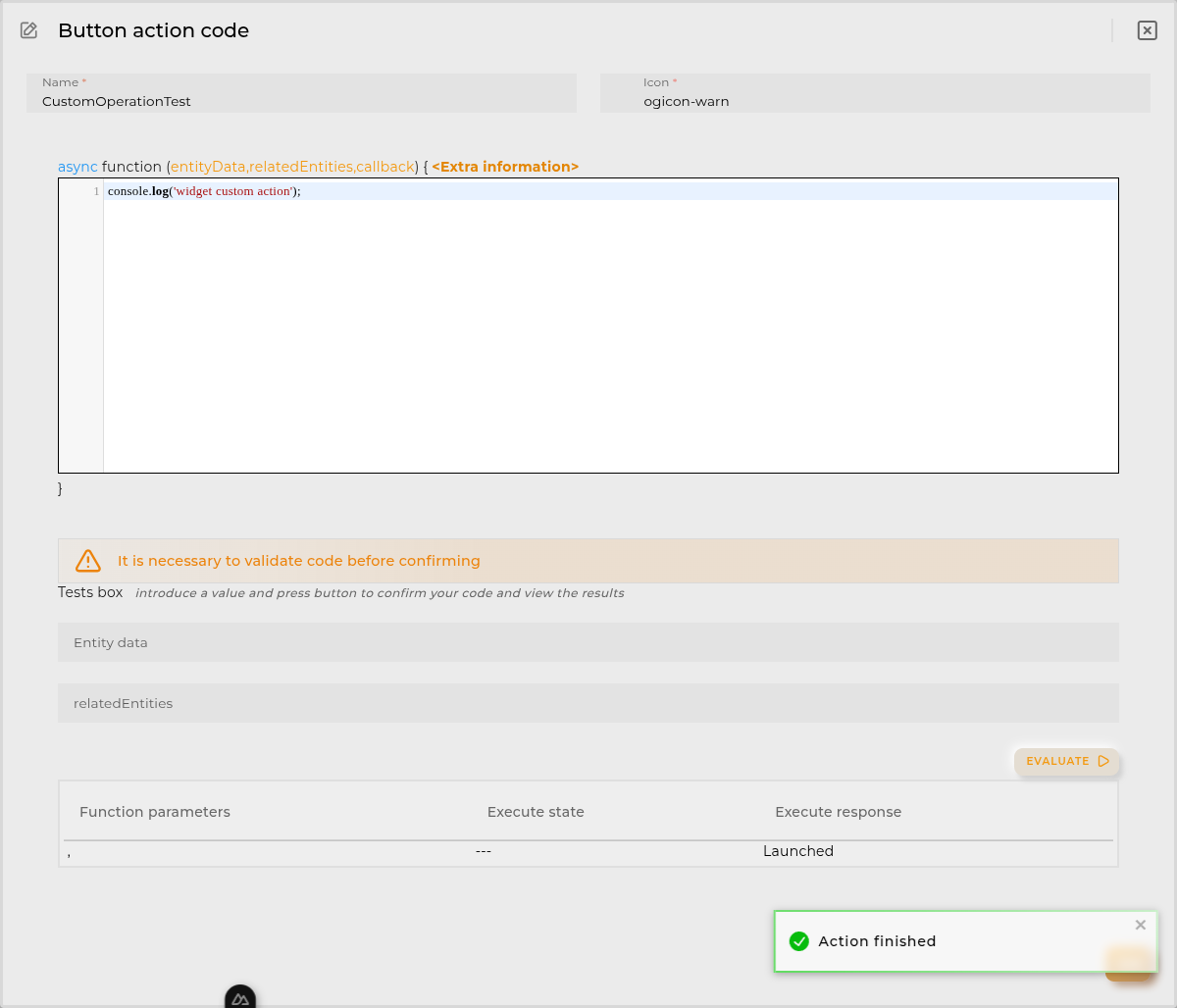
Extra action code

You can find all available functions and methods in Extra parameters

  • Pagination type allows you to specify the kind of pagination you want. There may be no pagination, pagination handled by the table component (local), or server-side pagination.

If server-side pagination is chosen, the script will receive parameters like the number of elements and the page, allowing the user to decide.

  • Page elements specifies the number of elements to show per page.
  • Allow data grouping enables the table to group items by elements in a column.
  • Show widget filters instructs the widget to display its filters. These filters will be passed as an additional parameter to the data retrieval function.
  • Compact the size of the table rows will make the table rows more compact to save vertical space.
  • Expandable rows enables an information button for expanded data on each row. The code must fill this information, or an empty space will be displayed.
Custom table general configuration

Column Configuration

Custom table column configuration

The data that will be displayed in table. In order to finish the configuration for this you must add one column at least and select a primary key. For every column you can define the next data:

  • Name to show in headers
  • JSON field is the field to read in data returned by the function. Primary key use that field
  • Sortable permits sorting for this column
  • Groupable allow group by this field in table
  • Filterable allow filter by this field in table
  • Data type of the filter (only when filterable)
  • Divisor draws a separator between this column and the next
  • Show entity actions enables context menu for the column allowing to perform some actions depending of the item value.

Columns supports drag&drop in order to determine the position in the table.

Code Tab

This is where you input the necessary code to retrieve the data to be displayed.

Custom table code configuration

Depending on the options selected in the general tab, the parameters received by the function will be displayed.

The function must always return an array of JSON objects compatible with the specified configuration for the component to be able to render them.

Each time the code is updated, it must be evaluated where a preview of the result can be seen. Finally you MUST return an array with a json that matches the columns configuration.

Custom table code preview

Function

Depending of the configuration receives the following parameters:

  • entityData contains the data of the opened entity NOTE: only available when the user opens an entity dashboard template

Example:

{
  "provision.administration.identifier": {
    "_value": {
      "_current": {
        "value": "device_1"
      }
    }
  },
  "provision.administration.organization": {
    "_value": {
      "_current": {
        "value": "organization_name"
      }
    }
  },
  "provision.administration.channel": {
    "_value": {
      "_current": {
        "value": "channel_name"
      }
    }
  },
  "provision.administration.serviceGroup": {
    "_value": {
      "_current": {
        "value": "service_group_name"
      }
    }
  }
}
  • relatedEntities contains an array of entities related to the entity selected. NOTE: only available when the user opens an entity dashboard template

Example:

[{
  "provision.administration.identifier": {
    "_value": {
      "_current": {
        "value": "related_1"
      }
    }
  },
  "provision.administration.organization": {
    "_value": {
      "_current": {
        "value": "organization_name"
      }
    }
  },
  "provision.administration.channel": {
    "_value": {
      "_current": {
        "value": "channel_name"
      }
    }
  },
  "provision.administration.serviceGroup": {
    "_value": {
      "_current": {
        "value": "service_group_name"
      }
    }
  }
}]
  • timeserieData contains info about the timeserie opened by the user
    • config timeserie configuration
    • data timeserie row selected

NOTE: only available when the user opens an entity dashboard template from timeserie table widget

An example:

{
  "config": {
    "identifier": "69281dc43545e97df66c42a1",
    "name": "Battery charge history",
    "timeBucket": 3600,
    "bucketColumn": "bucketEnd",
    "bucketInitColumn": "bucketInit",
    "identifierColumn": "EntityID",
    "retention": 2592000,
    "origin": "2025-11-26T23:00:00Z",
    "context": [
      {
        "path": "provision.device.administrativeState",
        "name": "Administrative state",
        "sort": "true",
        "filter": "YES",
        "type": "string"
      }
    ],
    "columns": [
      {
        "path": "device.powersupply.battery.charge._current.value",
        "name": "Powersupply battery charge Current Value",
        "filter": "NO",
        "type": "number",
        "sort": false,
        "aggregationFunction": "FIRST"
      }
    ]
  },
  "data": {
    "bucketEnd": "2025-12-11T13:00:00+01:00",
    "bucketInit": "2025-12-11T12:00:00+01:00",
    "EntityID": "entity_1",
    "Powersupply battery charge Current Value": 34
  }
}
  • alarmData contains the data of the alarm opened in template
{
  "identifier": "270dd9f9-1396-4660-bb5f-8d8b471e1dcd",
  "name": "activityForbidden",
  "rule": "activityForbidden",
  "description": "Activity detected for an entity with administrative state disabled",
  "severity": "INFORMATIVE",
  "priority": "LOW",
  "organization": "organization_name",
  "channel": "default_channel",
  "entityIdentifier": "A_WORKER_1",
  "subEntityIdentifier": "A_WORKER_1",
  "resourceType": "ENTITY_ASSET",
  "status": "CLOSED",
  "openingDate": "2019-06-27T08:57:36+02:00",
  "closureDate": "2019-06-27T08:57:51+02:00"
}
  • filters introduced by the user. These filters are:
    • generic widget generic filter
    • period widget date period filter
    • column json object with each column filter
    • sort an array containing every sorted column with its direction sorted by user preferences
    • inherit json object with inherited filter if ‘shared filter’ is enabled. This filter is composed by ‘and’ filter that contains standar filter, private/template filter and headers filters from the source widget.

An example:

{
    "filters": {
        "generic": "filter introduced by the user",
        "period": {"from":"2023-03-27T10:59:27+02:00","to":null},
        "column": {
            [column value field]: {
                operator: "eq",
                value: "filter introduced by the user in colum"
            },
            [column value field]: {
                operator: "gt",
                value: "filter introduced by the user in colum"
            }
        },
        "sort": [
            {
                column: "column value field",
                direction: "asc" or "desc"
            },
            {
                column: "column value field",
                direction: "asc" or "desc"
            }
        ],
        "inherit": {
            "and": [
              { "eq": {"field.identifier._current.value": "value"}},
              { "eq": {"field2.identifier._current.value": "value2"}}
            ]
        }
    }
}
  • pageElements and page that determines the current page to display. Only enabled when server pagination enabled in table parameters. Disabling server pagination quits this parameters and function must be evaluated again.

  • callback function used to send table data only when the api/http petitions are promised

callback(data);

or

callback([{
  "field1": "value1",
  "field2": "value2"
}]);

Available utils

$api -> use it to create http petitions to OpenGate Api Rest doc

$user -> Logged user

Example:

{
    "email": "email@amplia.es",
    "workgroup": "workgroup",
    "domain": "domain",
    "profile": "profile",
    "countryCode": "ES",
    "langCode": "en",
    "timezone": "Europe/Madrid"
}

$moment -> use it to format date doc

console -> display messages in navigator console

Promise -> allows easy execution of multiple promises

http -> javascript encapsulation of useFetch (Nuxt 4) library doc

openDashboard -> (workspaceId, dashboardId, newPage) -> Opens the selected dashboard in selected workspace

openEntityDashboard -> (entityIdentifier[, organization[user if empty], resourceType[’entity.device’ if empty] , newPage]) -> Opens the entity’s temporary dashboard

Data format

Returned data must have one of the following formats (per item):

  • simple json data
{
    "jsonfield": "value to display. It can be HTML."
}
  • ‘complex’ json data
{
    "jsonfield": {
        "value": "value to display. It can be HTML",
        "_style": "cell custom style",
        "_chart": "displays an echarts chart. Overrides others in this item",
        "_extension": "jsonfield like (value, _style, _chart)  plus _table. Only enabled when expandable rows enabled"
    }
}

NOTE _extension field can combine _chart and _table elements in the same item

  • Element _chart Must have an echarts config json.

  • Element _table Displays a table inside the column and overrides others in this item.

{
    columns: ['each', 'item', 'is', 'a', 'column],
    data: [
        ['data 1', 'in', 'columns', 'order', { jsonfield (without _extension is supported) }],
        ['data 2', 'in', 'columns', 'order', { jsonfield (without _extension is supported) }]
    ]

}

Examples


Subsections of Custom Table

Custom Table Example

Code

function baState(value) {
  if (value) {
    var newValor;
    var style;
    var title;
    switch (value) {
      case "0":
        newValor = "(OK)🟢";
        style = 'color:green;';
        title = "Bateria OK";
        break;
      case "1":
        newValor = "(BAJA)🟡";
        style = 'color:yellow;';
        title = "Bateria BAJA";
        break;
      case "2":
        newValor = "(MUY BAJA)🟠";
        style = 'color:orange;';
        title = "Bateria MUY BAJA";
        break;
      case "3":
        newValor = "(AGOTADA)🔴";
        style = 'color:red;';
        title = "Bateria AGOTADA";
        break;
      default:
        newValor = "Error en el campo";
        break;
    }
    return {
      _style: style,
      value: "<div title='" + title + ">" + newValor + "</div>"
    };
  } else {
    return 'N/A';
  }
}

function bpaState(value) {
  var newValor;
  var title;
  var style;
  if (value) {
    switch (value) {
      case "0":
        newValor = "(OK)🟢";
        title = "Protección no activa";
        style = 'color:green;';
        break;
      case "1":
        newValor = "(ACTIVADA)🔴";
        title = "Protección activada";
        style = 'color:red;';

        break;
      default:
        newValor = "Error en el campo";
        break;
    }
    return {
      value: "<div title='" + title + "'>" + newValor + "</div>",
      _style: style
    };
  }
}

function boolState(value) {
  var newValor;
  var title;
  var style;
  if (value === true || value === false) {
    if (value) {
      newValor = "🔴";
      title = "TRUE";
      style = 'color:red;';
    } else {
      newValor = "🟢";
      title = "FALSE";
      style = 'color:green;';
    }
    return {
      value: "<div title='" + title + "'>" + newValor + "</div>",
      _style: style
    };
  }
}


console.log("--------------------------------------------");
var builder = $api.entitiesSearchBuilder().limit(1000).flattened();

var filter = {
  and: [
    {
      neq: {
        'provision.device.specificType': 'CONCENTRATOR'
      }
    }
  ]
};

if (entityData && entityData['provision.administration.identifier']) {
  var entityKey = entityData['provision.administration.identifier']._value._current.value;
  filter.and.push({
    eq: {
      'provision.Sector': entityKey
    }
  });
}

builder.filter(filter);

const response = await builder.build().execute();

var entities = [];
if (response.statusCode === 200) {
  response.data.entities.forEach(function (entityTmp) {
    var finalData;
    if (entityTmp['ba']) {
      finalData = {
        identifier: {
          value: entityTmp['provision.administration.identifier']._value._current.value,
          _style: 'margin-left: 4px;'
        }
      };
      finalData.tipo_alerta = 'Batería';
      finalData.estado = baState(entityTmp['ba']._value._current.value);
      finalData.fecha = new Date(entityTmp['ba']._value._current.at).toLocaleString();
      entities.push(finalData);
    }

    if (entityTmp['bpA']) {
      finalData = {
        identifier: {
          value: entityTmp['provision.administration.identifier']._value._current.value,
          _style: 'margin-left: 4px;'
        }
      };
      finalData.tipo_alerta = 'Protección Batería';
      finalData.estado = bpaState(entityTmp['bpA']._value._current.value);
      finalData.fecha =  new Date(entityTmp['bpA']._value._current.at).toLocaleString();
      entities.push(finalData);
    }

    if (entityTmp['ta']) {
      finalData = {
        identifier: {
          value: entityTmp['provision.administration.identifier']._value._current.value,
          _style: 'margin-left: 4px;'
        }
      };
      finalData.tipo_alerta = 'Tampering';
      finalData.estado = boolState(entityTmp['ta']._value._current.value);
      finalData.fecha = new Date( entityTmp['ta']._value._current.at).toLocaleString();
      entities.push(finalData);
    }

    if (entityTmp['fa']) {
      finalData = {
        identifier: {
          value: entityTmp['provision.administration.identifier']._value._current.value,
          _style: 'margin-left: 4px;'
        }
      };
      finalData.tipo_alerta = 'Fuga';
      finalData.estado = boolState(entityTmp['fa']._value._current.value);
      finalData.fecha =  new Date(entityTmp['fa']._value._current.at).toLocaleString();
      entities.push(finalData);
    }

  });
}

return entities;

External API (USGS Earthquakes)

Static content

This example demonstrates how to fetch data from the USGS Earthquake Hazards Program API. This service supports server-side date filtering, which aligns perfectly with the widget’s Period Filter.

Function Explanation

  1. Date Filtering: The code checks the filters.period object.
    • If from and to are present, they are formatted to ISO 8601 strings (YYYY-MM-DD) and sent as starttime and endtime parameters.
    • If no period is selected, it defaults to the last 24 hours.
  2. Name/Text Filtering: The filters.generic (search text) is used to filter the results client-side (searching within the place field), as the API does not support a direct “text search” parameter for this endpoint.

Code

// Main function executed by the Custom Table widget
// parameters: entityData, filters, page, pageElements, callback

// Base URL for USGS Earthquake API (GeoJSON format)
let url = 'https://earthquake.usgs.gov/fdsnws/event/1/query?format=geojson&limit=200';

// 1. Handle Date Filters (Server-Side)
if (filters && filters.period && filters.period.from && filters.period.to) {
  // Helper to format date as YYYY-MM-DD
  const formatDate = (dateStr) => new Date(dateStr).toISOString().split('T')[0];
  
  const start = formatDate(filters.period.from);
  const end = formatDate(filters.period.to);
  
  url += `&starttime=${start}&endtime=${end}`;
} else {
  // Default to 'now' if no filter (API defaults to last 30 days usually, let's limit to recent)
  // Actually, let's explicitely ask for last 2 days to keep data manageable if no filter
  // But for simplicity, we rely on the API defaults or a 'limit' param already added above.
}

try {
  // 2. Fetch Data
  const response = await http(url);
  
  let features = [];
  if (response && response.features) {
      features = response.features;
  } else if (response && response.json) {
      const json = await response.json();
      features = json.features || [];
  }

  // 3. Handle Name/Text Filter (Client-Side)
  // filtering by 'place' property
  if (filters && filters.generic && filters.generic.length > 0) {
    const search = filters.generic.toLowerCase();
    features = features.filter(f => 
      f.properties.place && f.properties.place.toLowerCase().includes(search)
    );
  }

  // 4. Map to Table Columns
  // Configured Columns hint: 'place', 'magnitude', 'time', 'status'
  const tableData = features.map(f => {
    const props = f.properties;
    const dateObj = new Date(props.time);
    
    // Determine color based on magnitude
    let magColor = 'green';
    if (props.mag >= 5) magColor = 'red';
    else if (props.mag >= 3) magColor = 'orange';

    return {
      place: props.place,
      magnitude: {
          value: props.mag ? props.mag.toFixed(1) : '0.0',
          _style: `font-weight:bold; color: ${magColor};`
      },
      time: dateObj.toLocaleString(),
      status: `<a href="${props.url}" target="_blank">Ver Detalles</a>`
    };
  });

  callback(tableData);

} catch (error) {
  console.error("Error fetching earthquake data:", error);
  callback([]);
}

Filtered Entity Retrieval

Description

This example shows how to retrieve entities filtering by a parameter and sorting by name.

Code

/**
 * Main function to retrieve and display entities
 * @param {Object} entityData - Context entity data
 * @param {Object} filters - Filters passed from the widget
 */

var builder = $api.entitiesSearchBuilder().limit(100).flattened();

// 1. Filter by parameter (assuming it comes in filters.generic or a specific field)
// Here we assume filters.generic contains a string to filter by name
if (filters && filters.generic) {
    builder.filter({
        like: {
            'provision.asset.name': filters.generic // Adjust field as needed (e.g., provision.device.name)
        }
    });
}

// 2. Sort by name
builder.sort([
    {
        column: 'provision.asset.name',
        direction: 'asc'
    }
]);

// 3. Execute query
var response = await builder.build().execute();

// 4. Transform results
var results = [];
if (response && response.data && response.data.entities) {
    response.data.entities.forEach(function(entity) {
            // Extract identifier (using bracket notation for flattened keys)
        var id = entity['provision.administration.identifier'] ? entity['provision.administration.identifier']._value._current.value : "Unknown";
        
        // Extract name (handle if it doesn't exist)
        var name = "N/A";
        if (entity['provision.asset.name']) {
            name = entity['provision.asset.name']._value._current.value;
        }

        results.push({
            identifier: id,
            name: name
        });
    });
}

return results;

Server Pagination Example (Reqres)

Static content

This example demonstrates how to implement server-side pagination using an external API (reqres.in). When “Server Pagination” is enabled in the widget configuration, the script receives page and pageElements parameters.

Function Explanation

  1. Page Parameters: The page and pageElements arguments act as the current page number and the page size (limit), respectively.
  2. API Request: The code constructs a request to reqres.in passing page and per_page query parameters.
  3. Callback: The function processes the response and sends the array of users to the widget via the callback.

Code

// Main function executed by the Custom Table widget
// parameters: entityData, filters, page, pageElements, callback

// 1. Prepare Pagination Parameters
// Ensure we have defaults if arguments are missing (safeguard)
const currentPage = page || 1;
const perPage = pageElements || 5;

// 2. Construct URL with pagination params
// reqres.in uses 'page' (1-based) and 'per_page'
const url = `https://reqres.in/api/users?page=${currentPage}&per_page=${perPage}`;

try {
  // 3. Fetch Data
  const response = await http(url);
  
  // 4. Extract Data
  // reqres.in returns: { page: 1, per_page: 6, total: 12, total_pages: 2, data: [...] }
  let users = [];
  
  // Check various response wrappers as 'http' might auto-parse JSON
  if (response && response.data && Array.isArray(response.data)) {
      users = response.data;
  } else if (response && response.json) {
      const json = await response.json();
      users = json.data || [];
  } else if (response && Array.isArray(response)) {
      users = response;
  }

  // 5. Format for Table
  // Configured Columns hint: 'id', 'avatar', 'first_name', 'last_name'
  const tableData = users.map(user => {
    return {
      id: user.id,
      avatar: `<img src="${user.avatar}" style="width: 30px; border-radius: 50%;">`,
      first_name: user.first_name,
      last_name: user.last_name,
      email: user.email
    };
  });

  // 6. Return Data
  // We return the array of items for the current page.
  callback(tableData);

} catch (error) {
  console.error("Error fetching paged data:", error);
  callback([]);
}

Battery Level Pie Chart

Description

This example shows how to retrieve entities and display their battery level as a Pie Chart within the table row.

Code

var builder = $api.entitiesSearchBuilder().limit(100).flattened();

// Handle generic filter if present
if (filters && filters.generic) {
    builder.filter({
        like: {
            'provision.administration.identifier': filters.generic
        }
    });
}

var response = await builder.build().execute();

var results = [];
if (response && response.data && response.data.entities) {
    response.data.entities.forEach(function(entity) {
        // Get identifier
        var id = entity['provision.administration.identifier'] ? entity['provision.administration.identifier']._value._current.value : "Unknown";
        
        // Get battery charge (default to 0 if not present)
        var charge = 0;
        if (entity['device.powersupply.battery.charge']) {
            charge = entity['device.powersupply.battery.charge']._value._current.value;
        }

        // Create the chart configuration
        var pieOption = {
            color: ['#91c7ae', '#c23531'],
            series: [
                {
                    type: 'pie',
                    radius: ['50%', '70%'],
                    avoidLabelOverlap: false,
                    label: {
                        show: false,
                        position: 'center'
                    },
                    emphasis: {
                        label: {
                            show: true,
                            fontSize: '10',
                            fontWeight: 'bold'
                        }
                    },
                    labelLine: {
                        show: false
                    },
                    data: [
                        { value: charge, name: 'Charge' },
                        { value: 100 - charge, name: 'Empty' }
                    ]
                }
            ]
        };

        results.push({
            identifier: id,
            battery: {
                "_chart": pieOption,
                "_style": "height: 50px; width: 50px;" // Optional styling for the cell
            }
        });
    });
}

return results;