Organization Files List
From here, you can manage the files uploaded to the private storage of the organization.
These are the same files managed in Organization Files, in the administration section of the organization.
How it Works
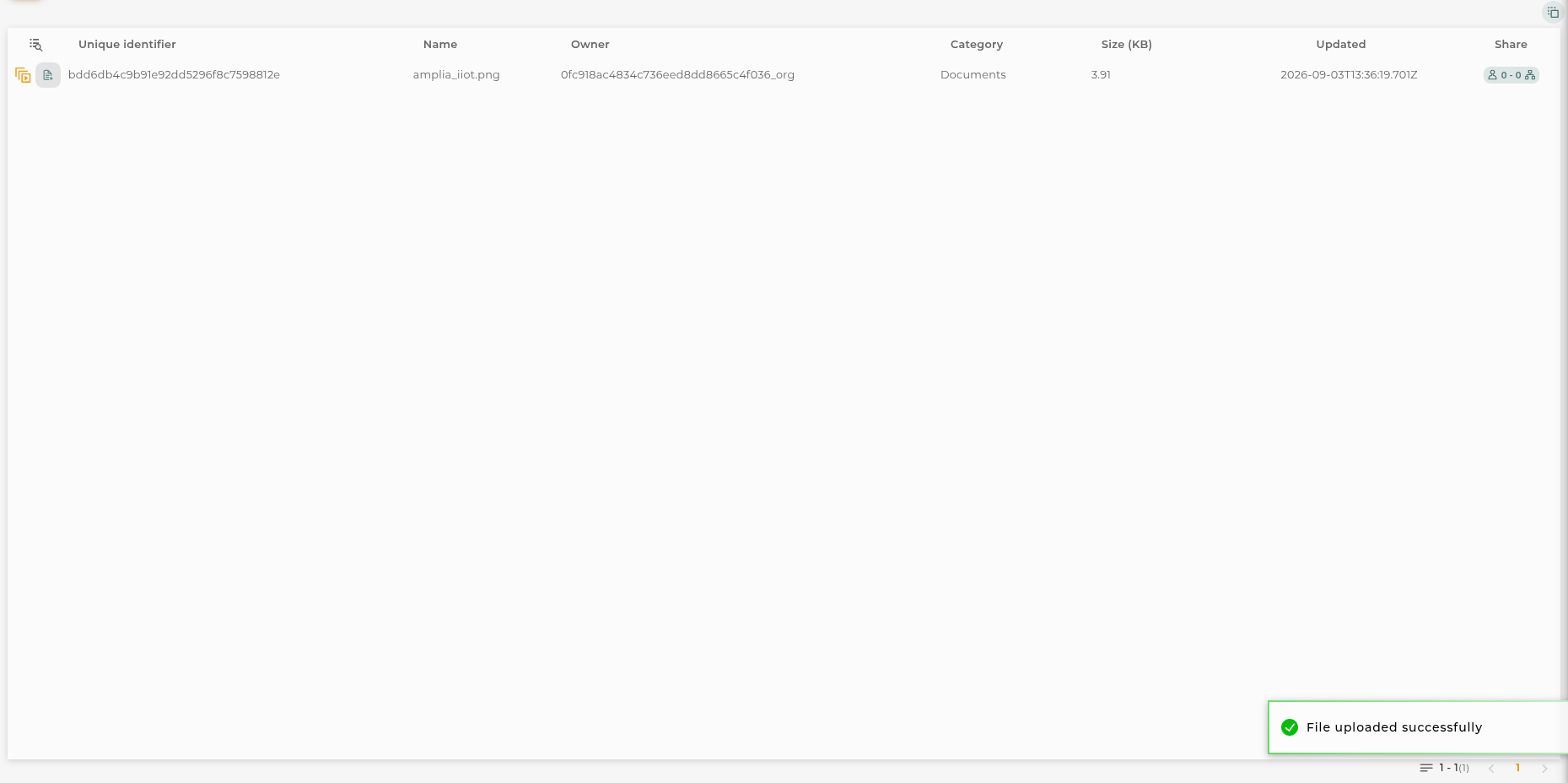
The file listing displays information for each of the stored files.
Files are grouped into 6 categories, which help the user identify the type of files and where they can be used. These categories are as follows:
- BIM/IFC files in this category contain 3D models compatible with the BIM/IFC standard and are ready to be used in the corresponding widget (will be converted into fragments files when uploaded).
- FRAG fragments files for the Advanced BIM widget to create an own BIM model with no need of external sources.
- SVG vector files that can be used in image widgets or any configuration that allows image import.
- Image image files that can be used in image widgets or in any configuration that allows image import.
- Documents any type of documentation files can be placed here, especially to be used in iframe widgets and to be displayed.
- JSON plain JSON files. These files are not processed by the platform in any way.
The following information is shown in the listing:
- Unique Identifier the unique identifier of the file.
- Name the name of the file.
- Owner the organization where this file is located.
- Category indicates the category where the file is placed.
- Size (KB) the size of the file in kilobytes.
- Updated date and time of the last file update.
- Shared displays the number of users and organizations the file is shared with.
Uploading a file
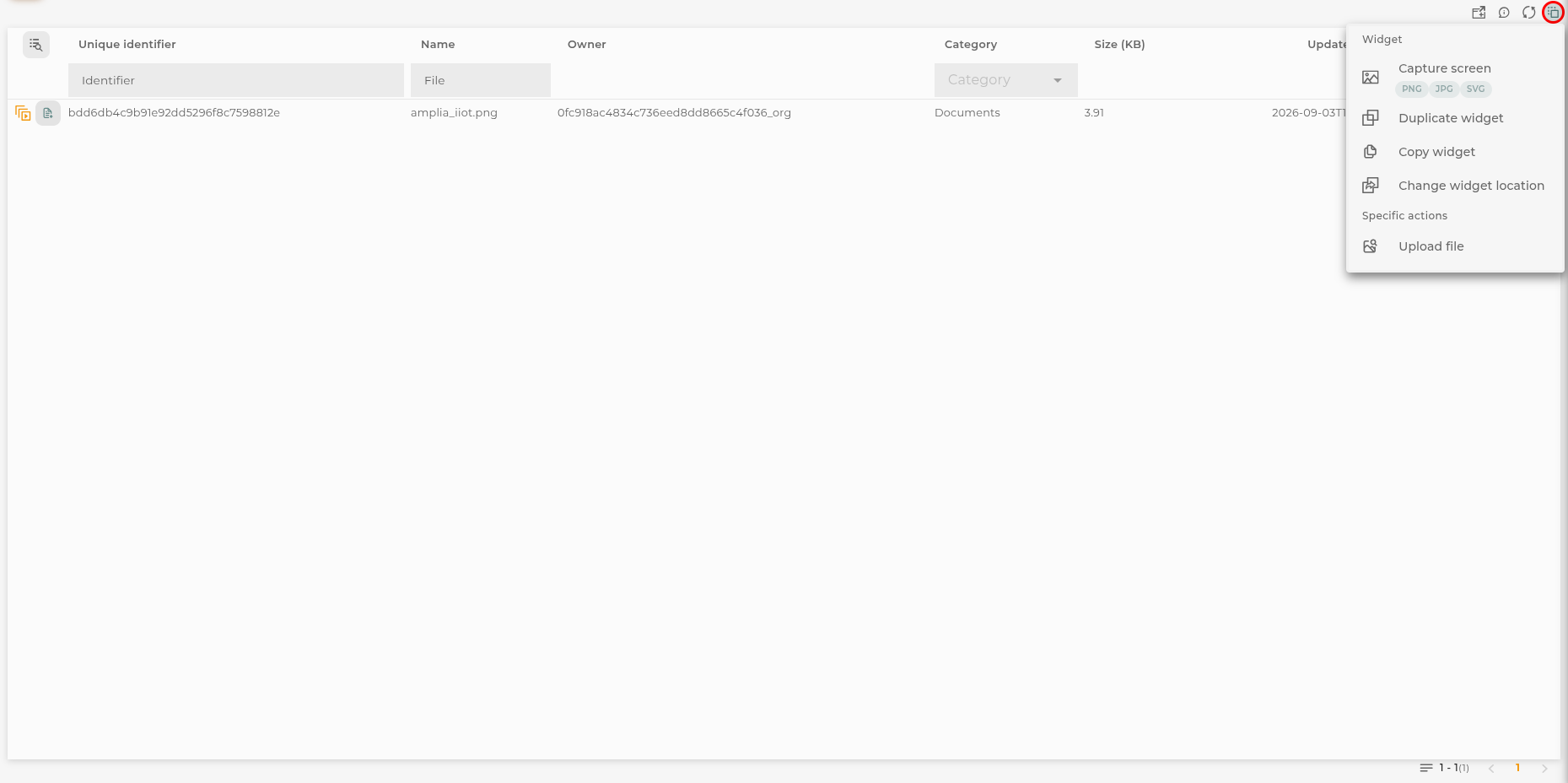
First, it is necessary to click on the “Upload File” button in the navigation bar. This will open the file selection dialog.
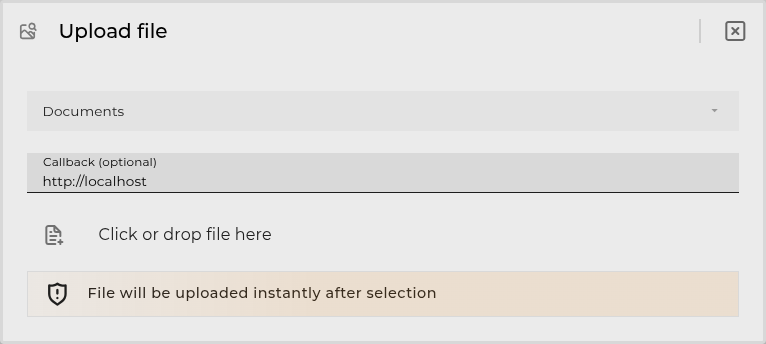
Here you must select the category for the file to upload. Once selected, you can enter a callback URL to be invoked once the file is uploaded. Finally, you must click on the “Click or drop file here” button to select the file to upload.
The callback URL is invoked with a POST request carrying the following body:
File Actions
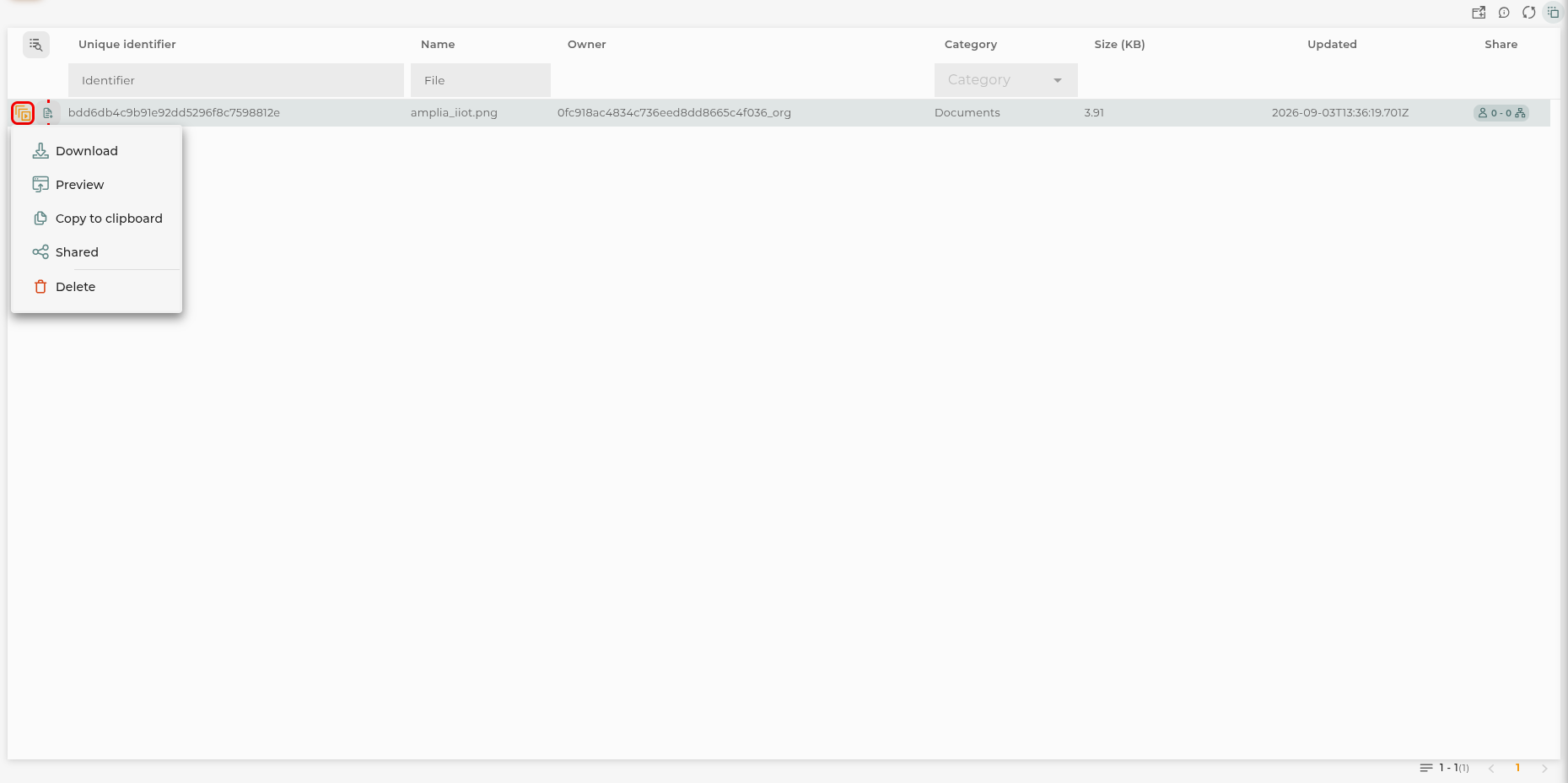
For each item in the listing, the following actions can be performed:
- Download opens the file for downloading.
- Copy to Clipboard copies the unique URL of the file for use on the platform.
- Share allows viewing and sharing the script for other users to use.
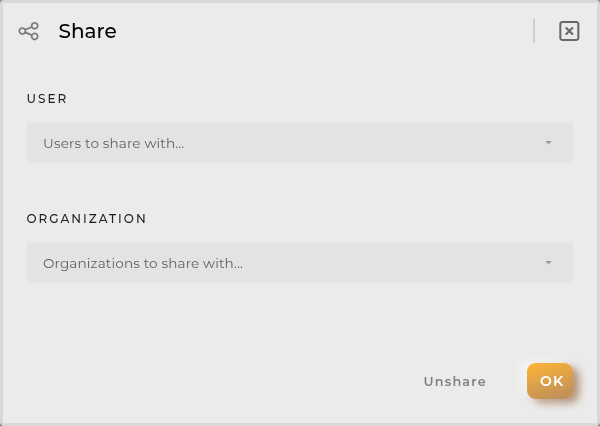
-
Choose File to Upload allows updating the uploaded file with another. This does not affect the generated link, so the change will be reflected wherever it was being used.
-
Delete removes the selected file.
Filters
Filters allow applying a filter on the listing.
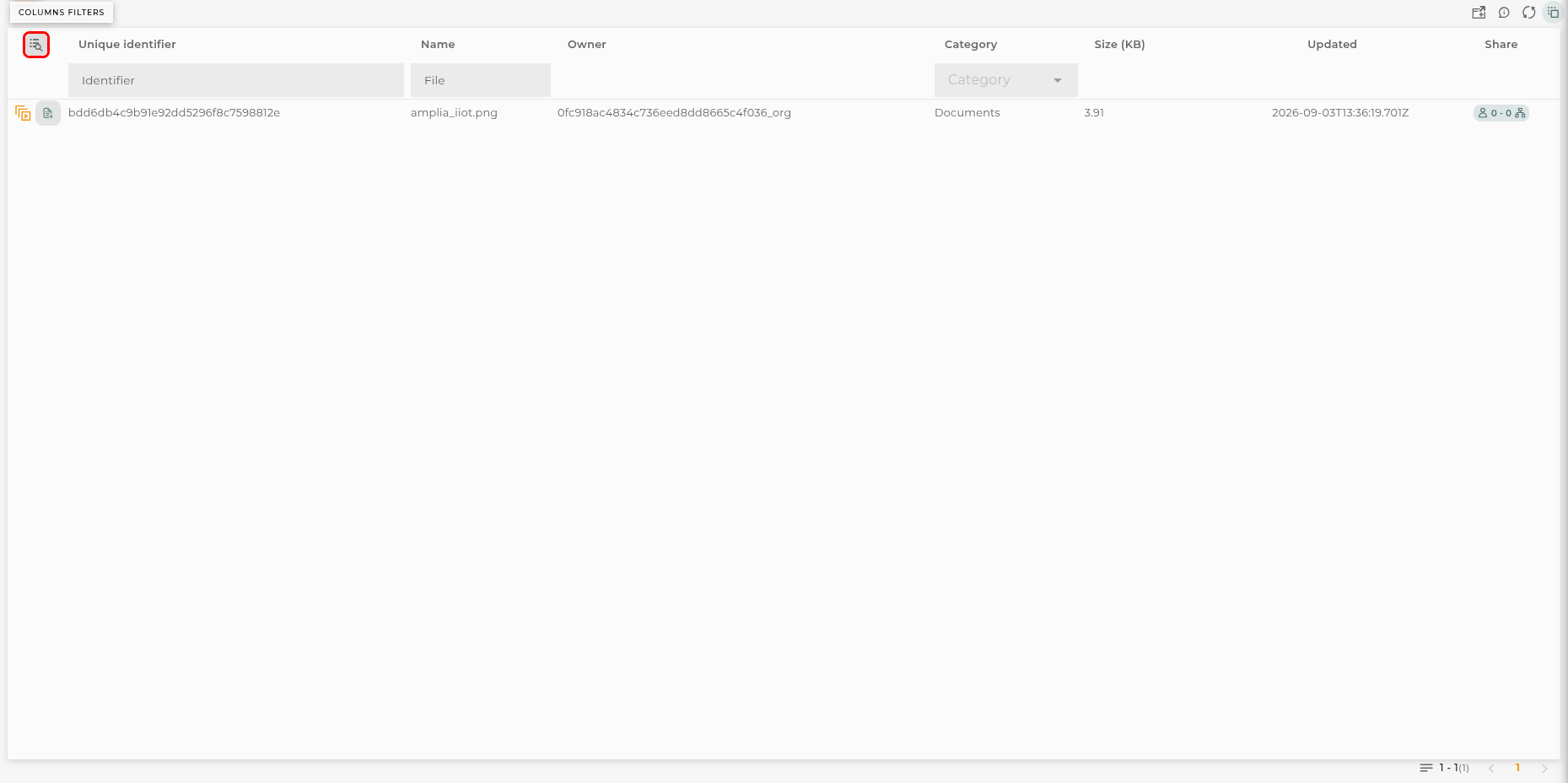
You can use these filters:
Name filters by file name (like search).
Identifier filters by file identifier (like search).
Category filters by file category (list of predefined options).
List can be sorted by clicking on the column headers. This configuration will be saved if dashboard settings are saved. Default sort is by last updated date, descending.
Configuration
The widget can be configured with a predefined filter. In that case the inline filters are replaced by the configuration options, so the user browses the prefiltered listing without being able to change it.