Areas Map
Widget that displays the areas provisioned for an organization.
How it works

Popup
The popup will display relevant information about the area as well as certain actions:
- edit area
- delete area
Basic Filter

Perform a basic search by entering text that will filter by predefined fields.
Advanced Filter

Perform a search by selecting the fields to filter by and how to filter by them.
Save and Restore Filters
Basic and Advanced filters can be saved in order to preconfigure a list of filters and restore them at any time. This feature is only available in own dashboards but can be shared with other users.
You can save a filter by fullfilling the filter name in the field at the bottom of the filter panel and clicking on the save button. When a filter is saved, it is stored in the widget’s filter list and can be restored at any time by selecting it from the saved filters list located at the top of the filter panel.
Filters can be saved only when a new filter is created.
This can be useful when you want to save a list of filters that you use frequently and restore them at any time.
Widget Menu

The following actions can be performed:
- New area: will open the area wizard to create a new area
- Capture screen: Takes a screenshot of the widget.
- Duplicate widget: Creates a duplicate of the widget on the dashboard.
- Copy widget: Copies the widget to another dashboard.
- Change widget location: Moves the widget to another dashboard.
Configuration

General
- Boxed: widget will be displayed with background in dahsboard.
- About: widget description in Markdown format.
- Title: widget title. It can be configured to remain fixed in the widget or only be displayed when it receives focus.
- Toolbar: configures the behavior of the widget bar on the dashboard, allowing you to hide it, hide it when not in use, or leave it always visible.
- Refresh Frequency: allows configuring the data refresh frequency displayed in the list.
- Extra actions: allows user to add new specific actions to the widget with your own code.
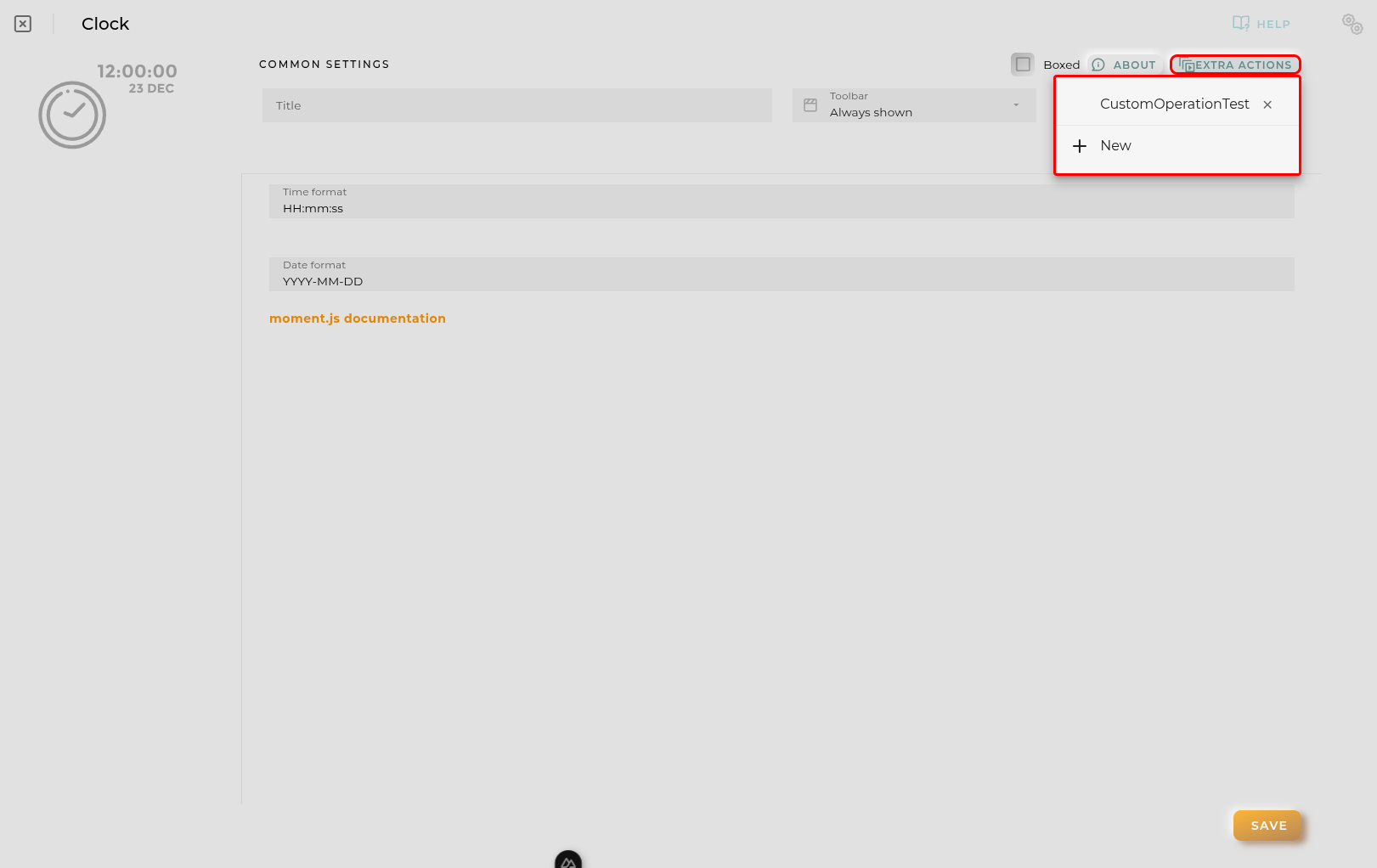
You can add a new one by pressing the New button.
Once you added a custom action it can be modified later by pressing the name in the list.
In order to remove the custom action click the delete icon button on the right.
In extra actions you can write your own code were you can open other dashboards, entities dashboards or execute wizards.
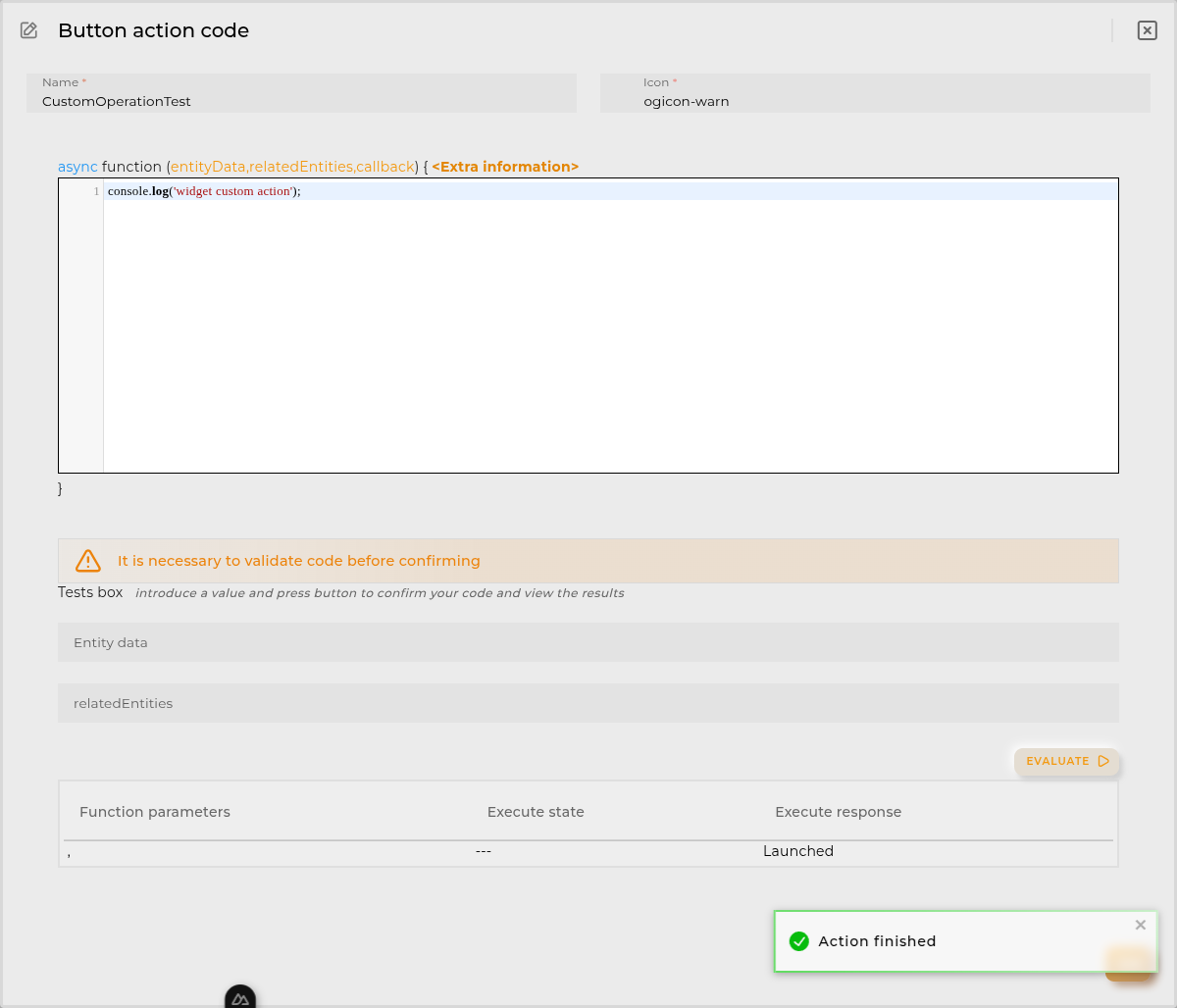
You can find all available functions and methods in Extra Information