Maps
Widget that displays entities with location, both provisioned and collected.
How it works
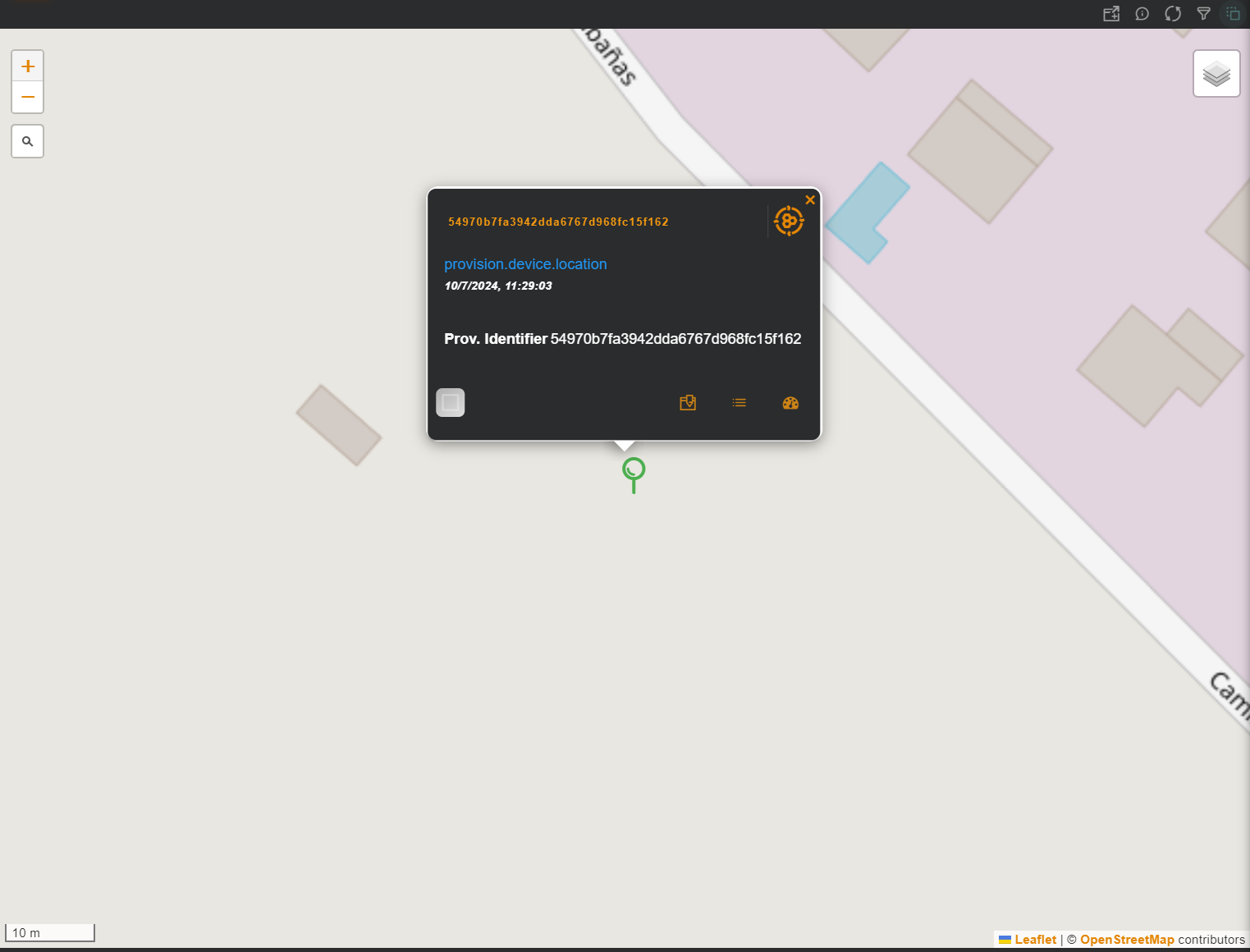
Basic Filter
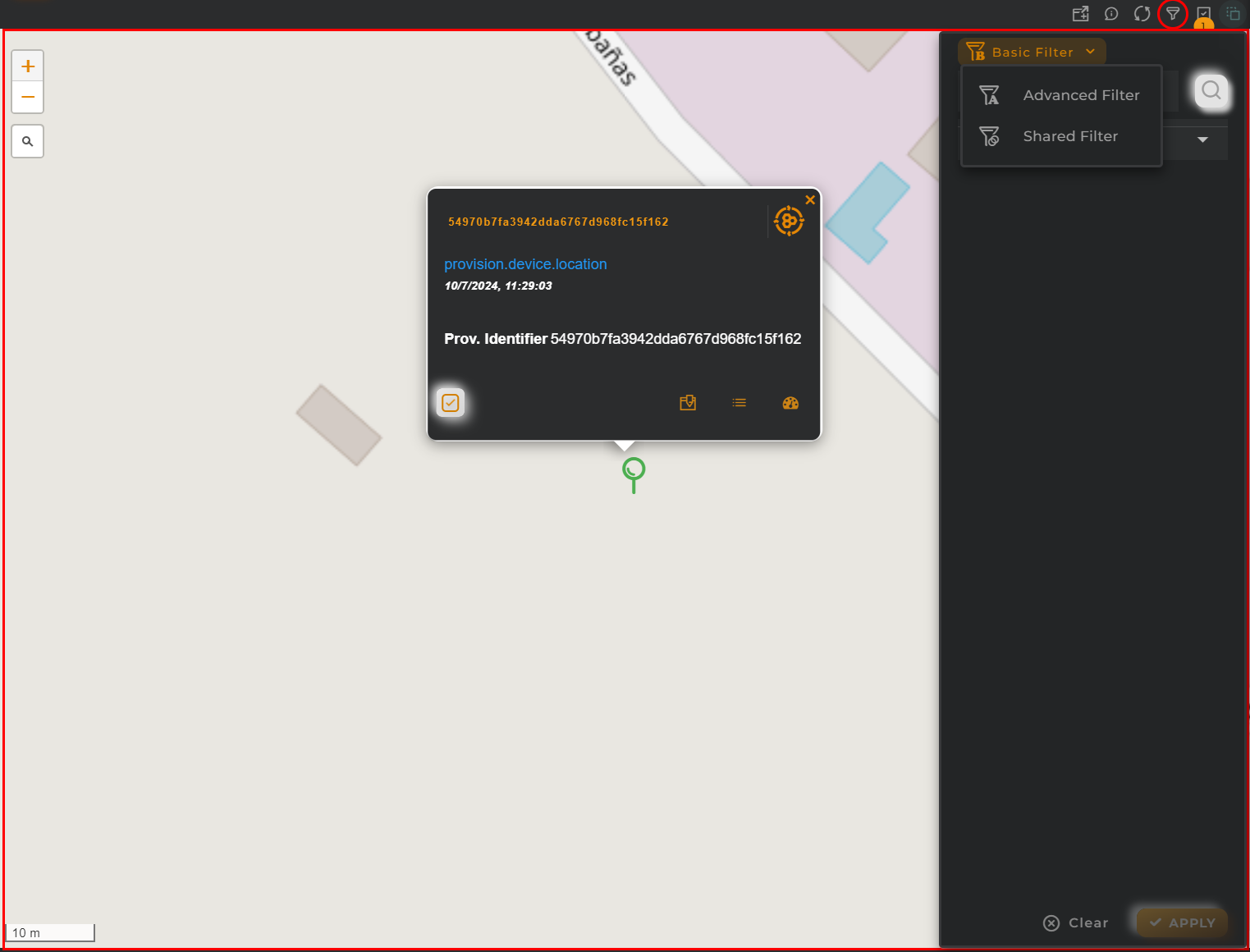
Perform a basic search by entering text that will filter by predefined fields.
Advanced Filter
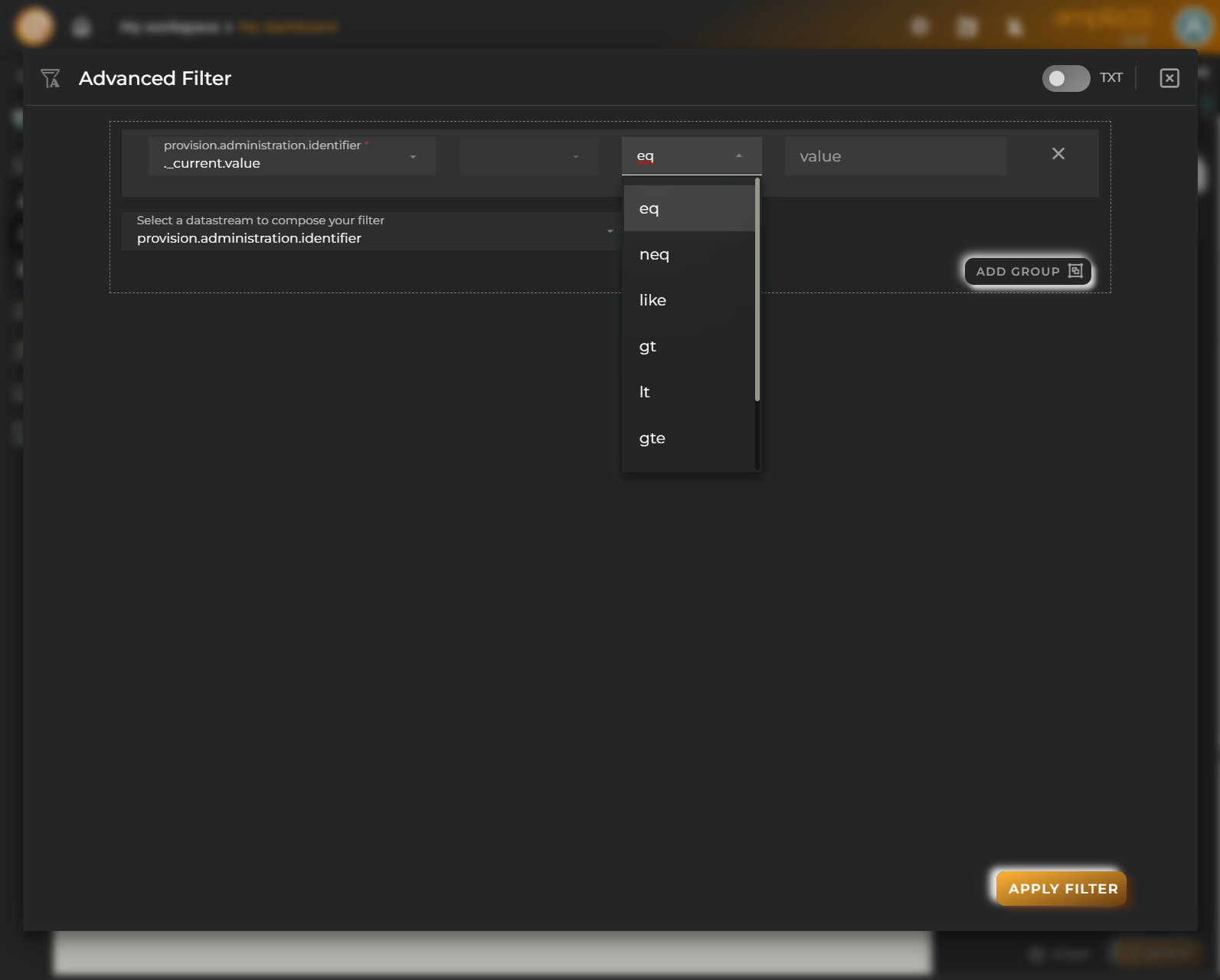
Perform a search by selecting the fields to filter by and how to filter by them.
Popup
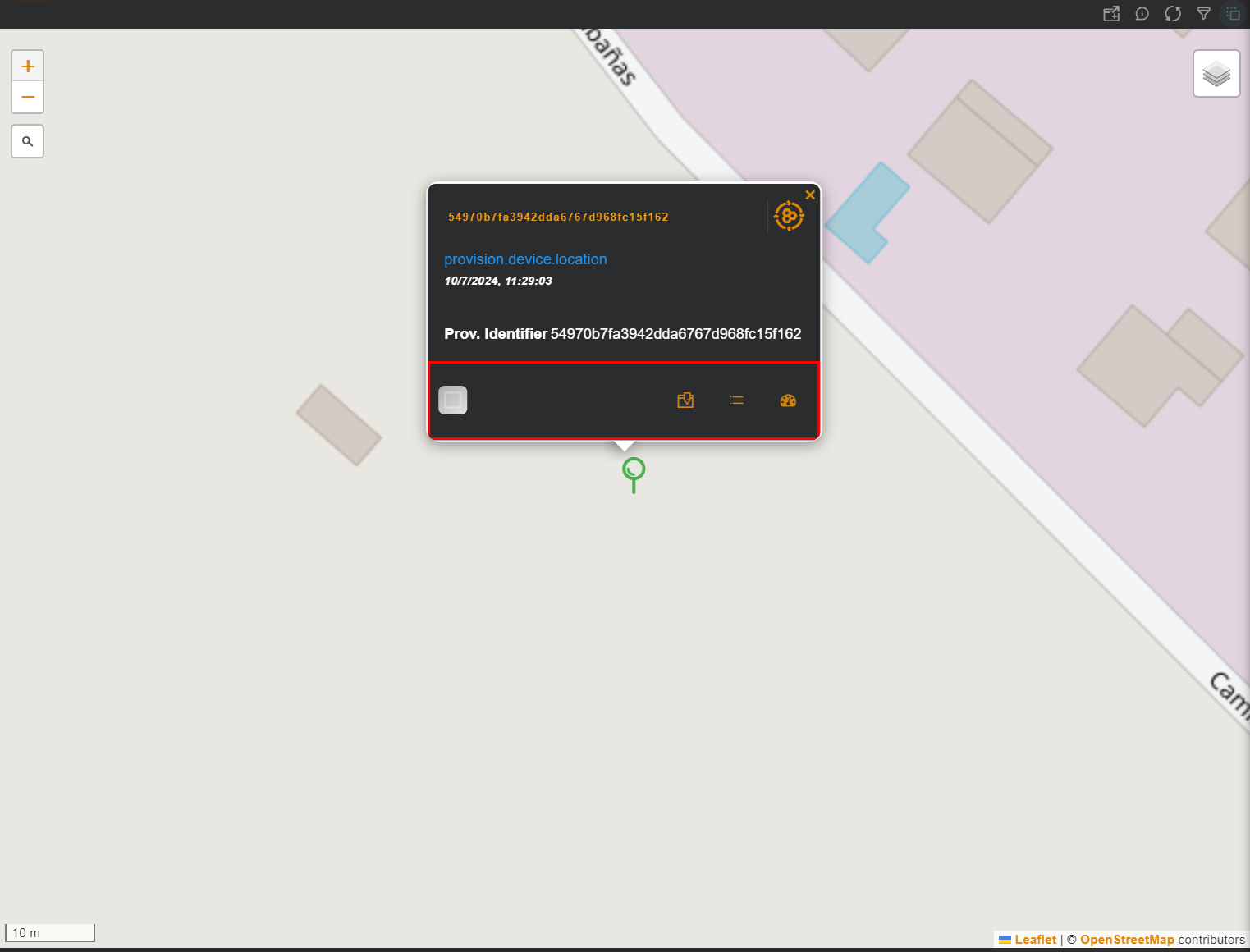
The popup will display relevant information about the device as well as certain actions:
- edit entity
- view entity details
- open a temporary dashboard with information about the entity
Widget Menu
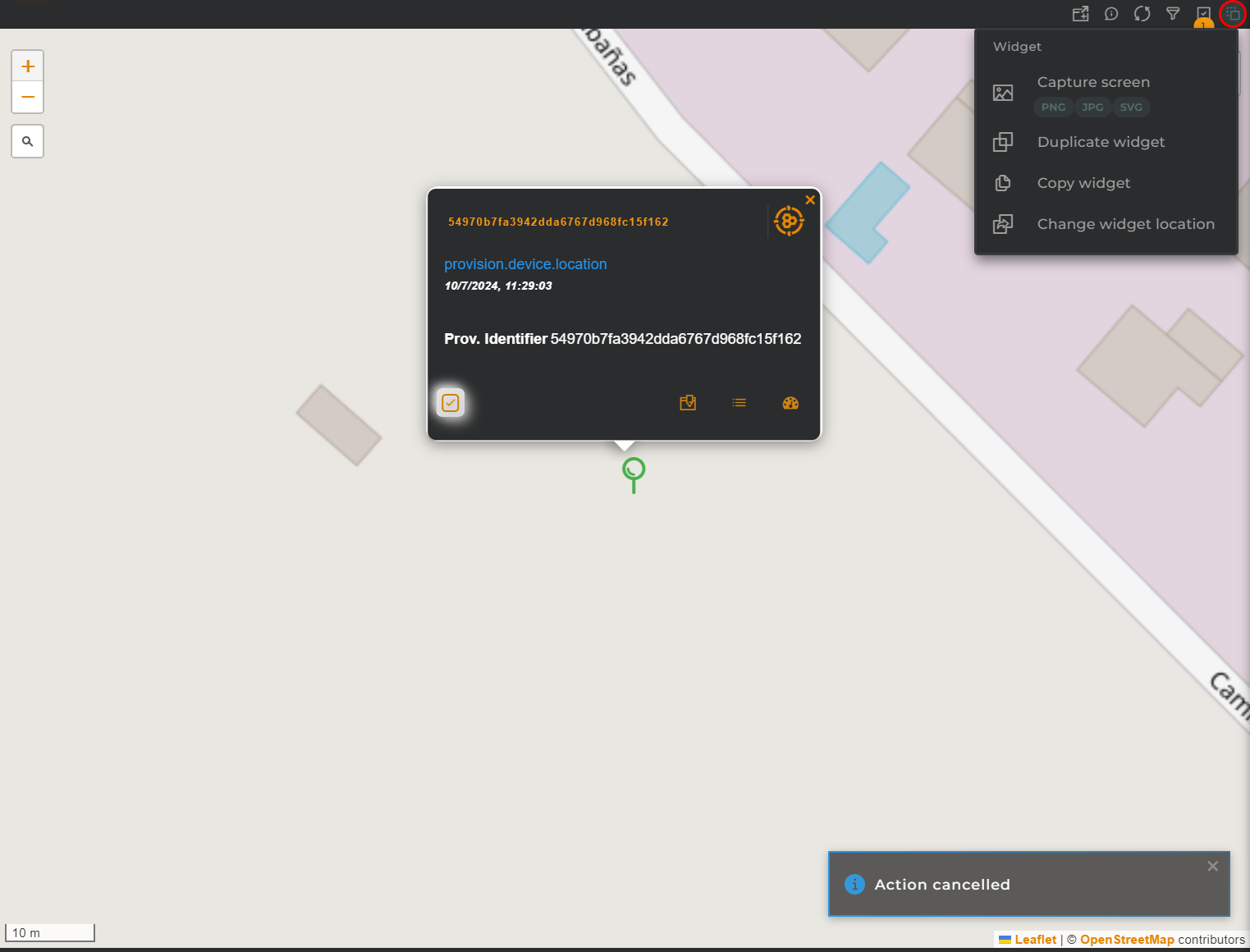
The following actions can be performed:
- Capture screen: Takes a screenshot of the widget.
- Duplicate widget: Creates a duplicate of the widget on the dashboard.
- Copy widget: Copies the widget to another dashboard.
- Change widget location: Moves the widget to another dashboard.
Configuration
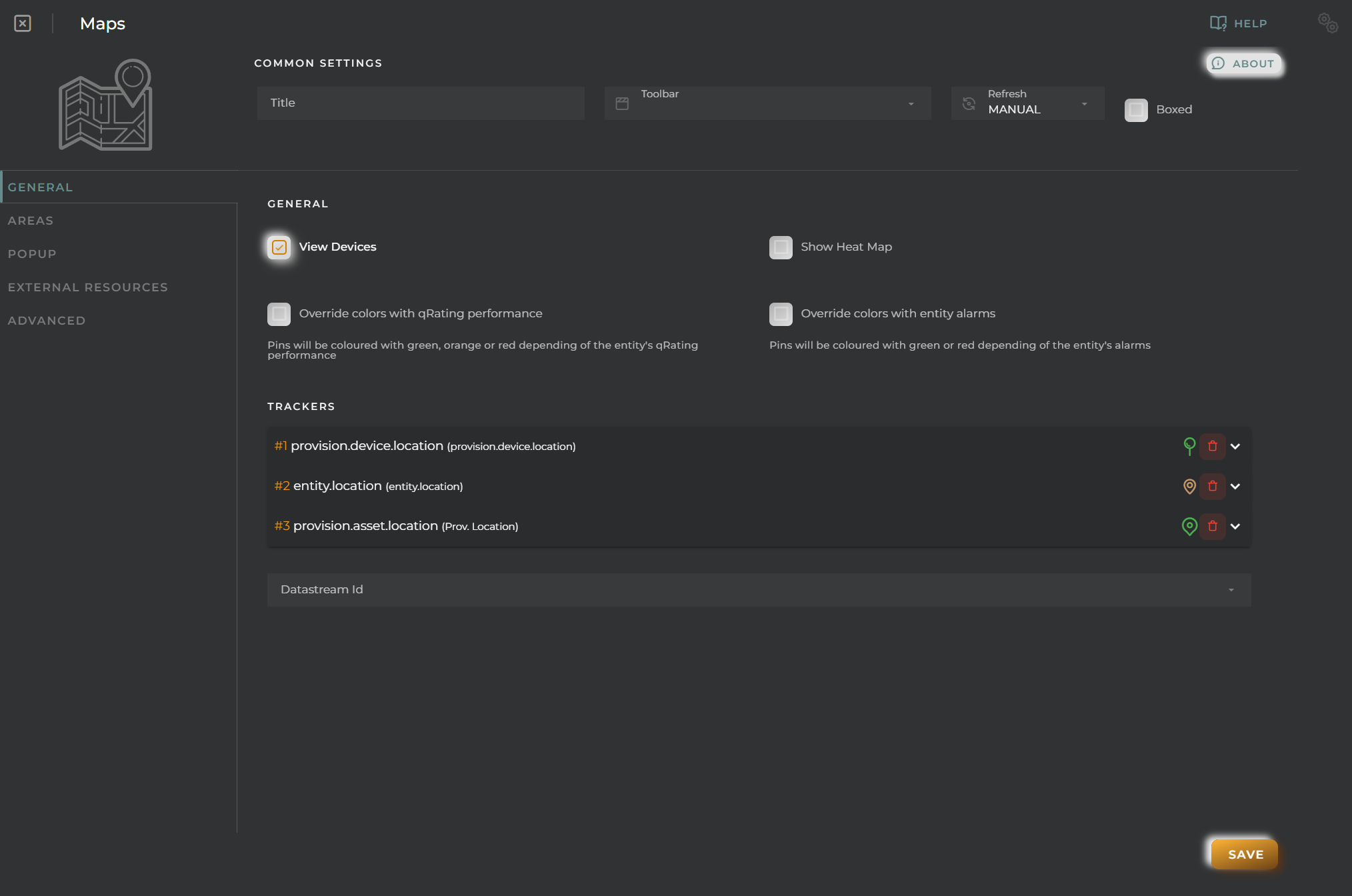
General
- Boxed: widget will be displayed with background in dahsboard.
- About: widget description in Markdown format.
- Title: widget title. It can be configured to remain fixed in the widget or only be displayed when it receives focus.
- Toolbar: configures the behavior of the widget bar on the dashboard, allowing you to hide it, hide it when not in use, or leave it always visible.
- Refresh Frequency: allows configuring the data refresh frequency displayed in the list.
- Extra actions: allows user to add new specific actions to the widget with your own code.
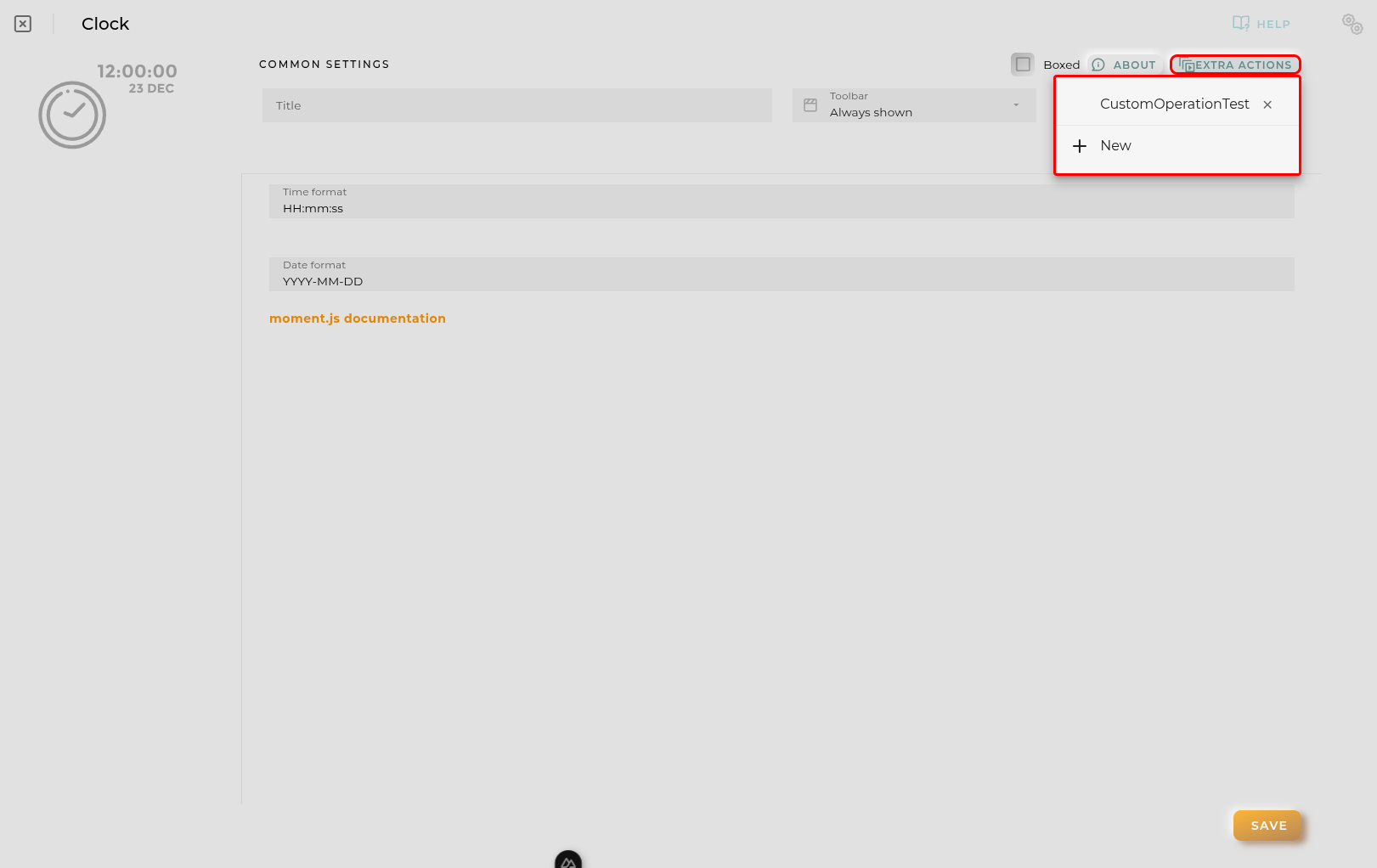
You can add a new one by pressing the New button.
Once you added a custom action it can be modified later by pressing the name in the list.
In order to remove the custom action click the delete icon button on the right.
In extra actions you can write your own code were you can open other dashboards, entities dashboards or execute wizards.
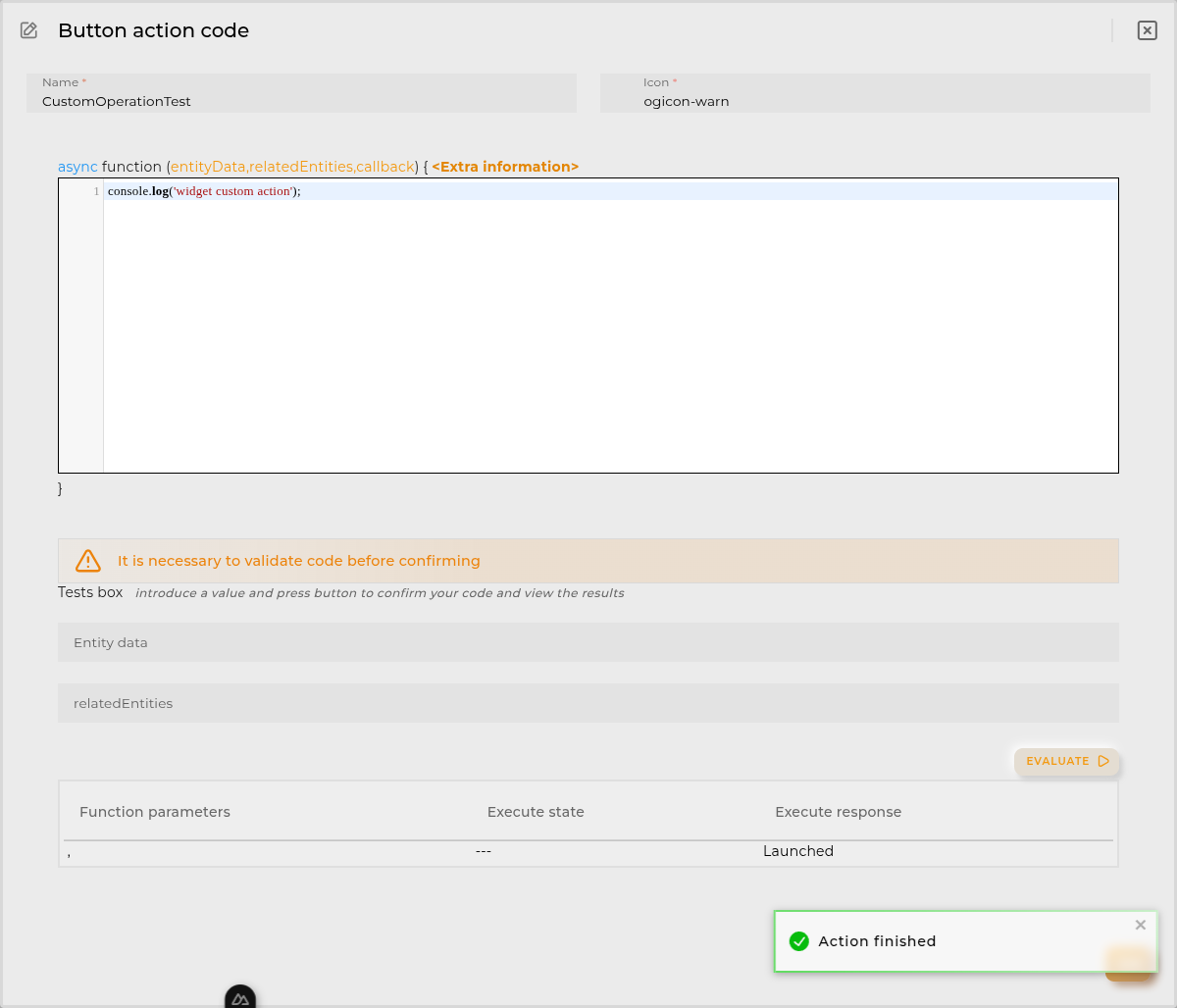
You can find all available functions and methods in Extra parameters
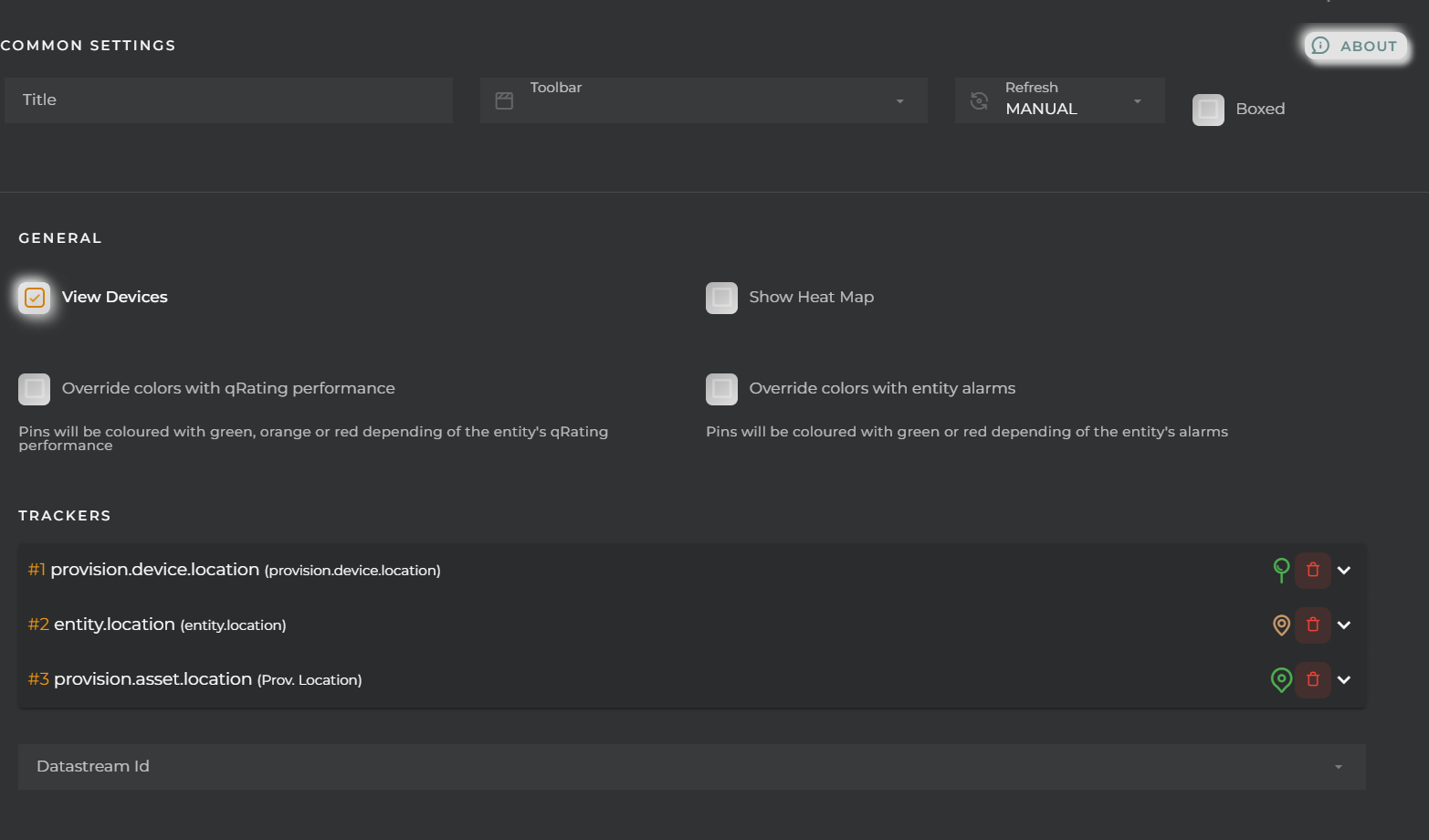
- View Devices
- Show Heat Map
- Override colors with qRating performance
- Override colors with entity alarms
- Trackers: each of the points to display can be configured based on the data streams from which the location is retrieved. It is selected from the Datastream Id combo
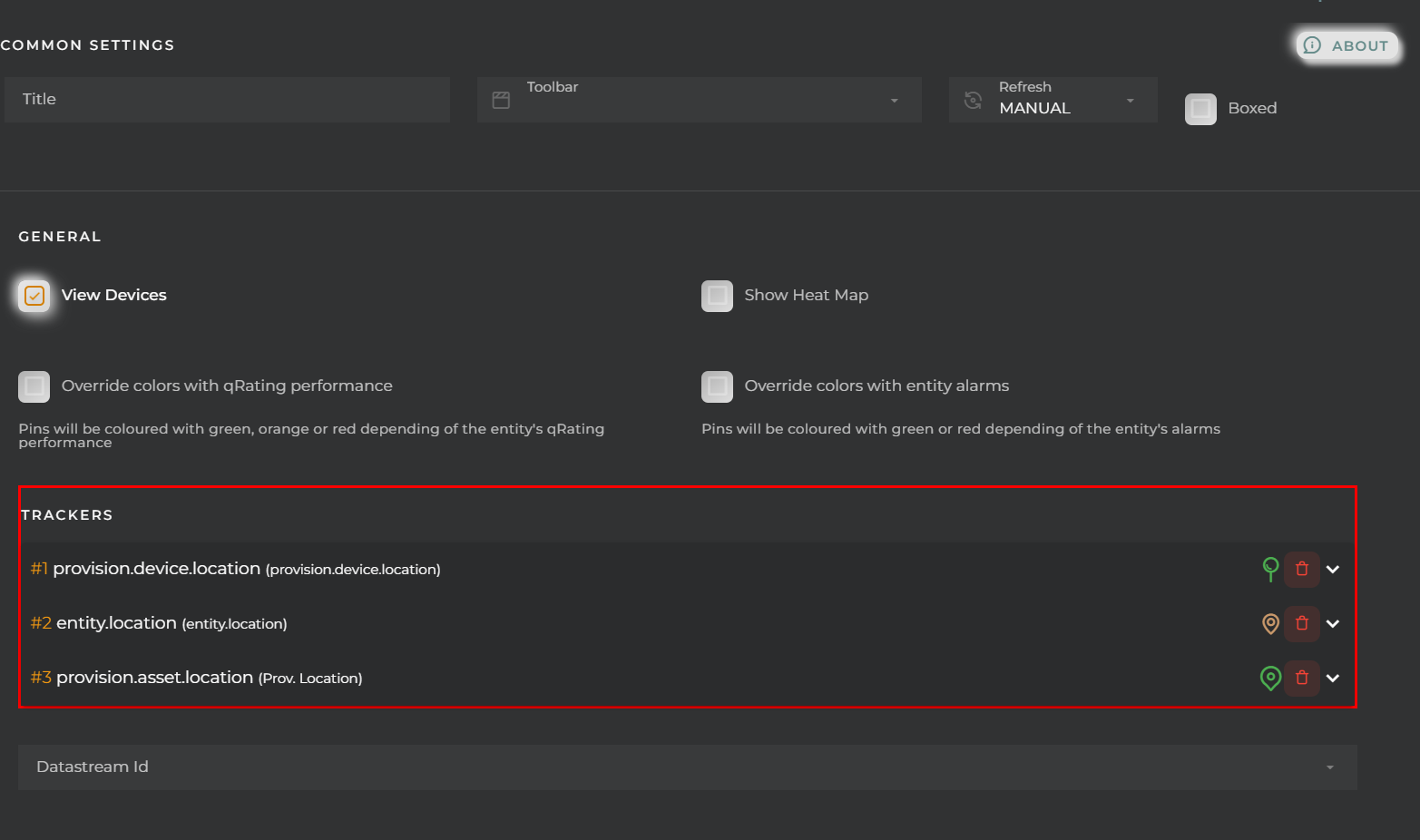 - alias: modification of the popup title for the pin - icon: pin icon - color: pin color - formatter: pin formatter
Areas
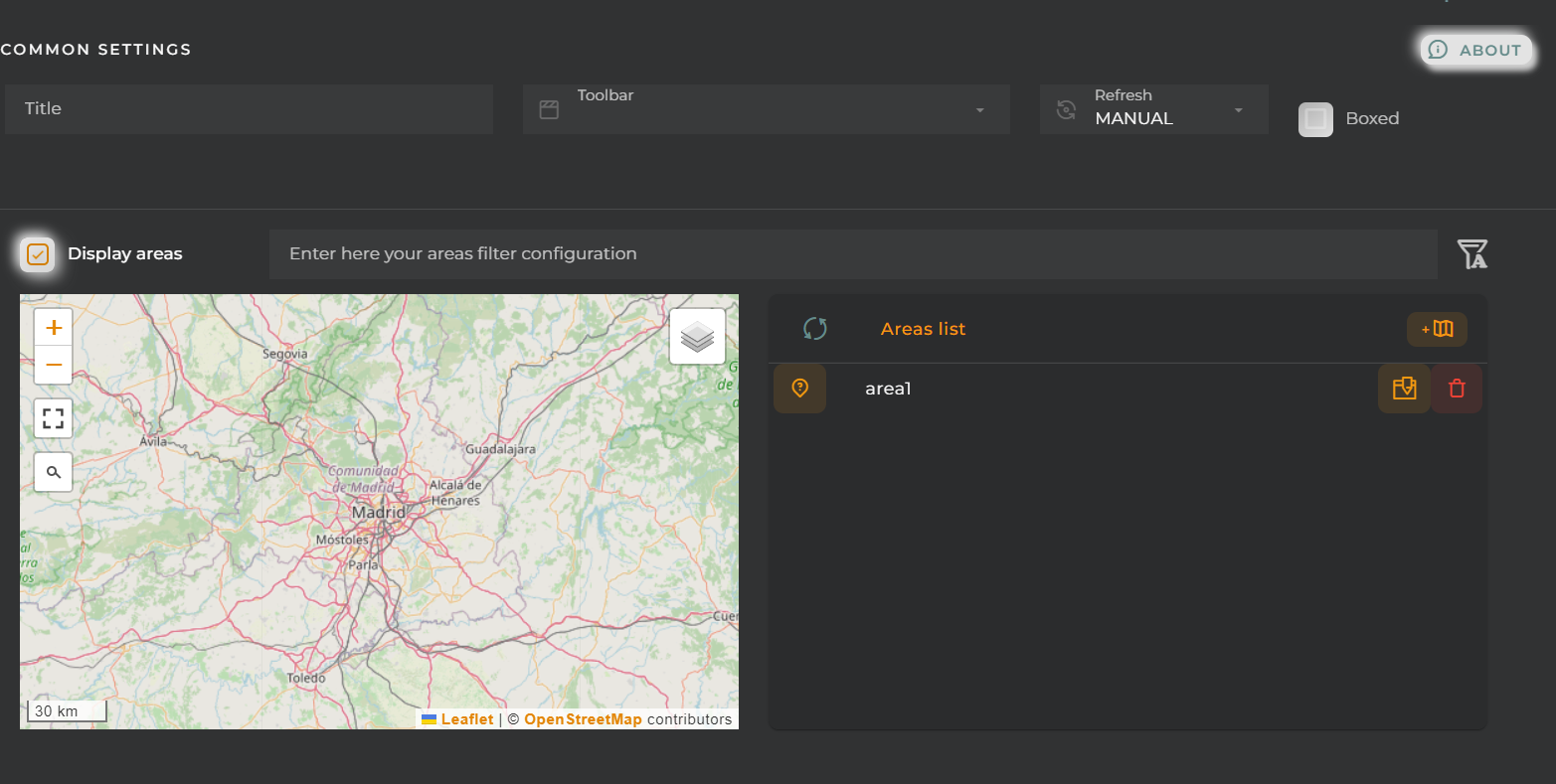
Configuration of area display and management.
Popup configuration
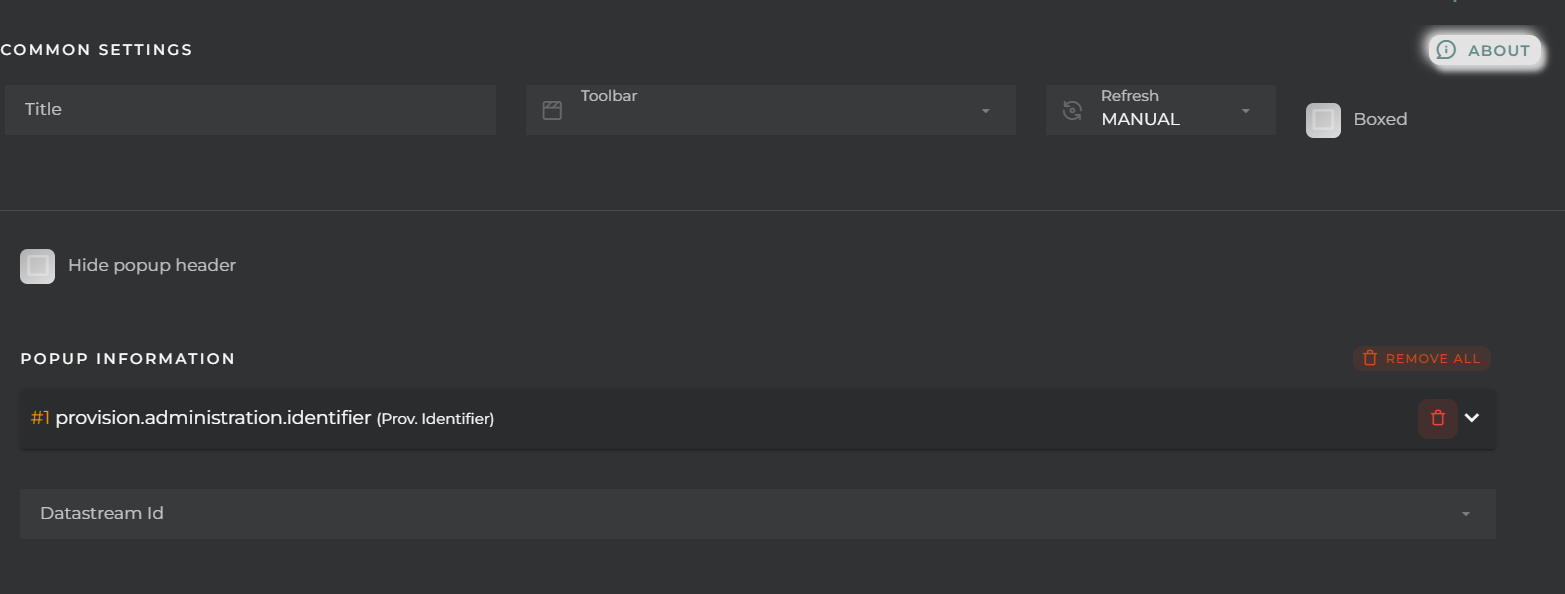
Configuration of the data to be displayed in the popup.
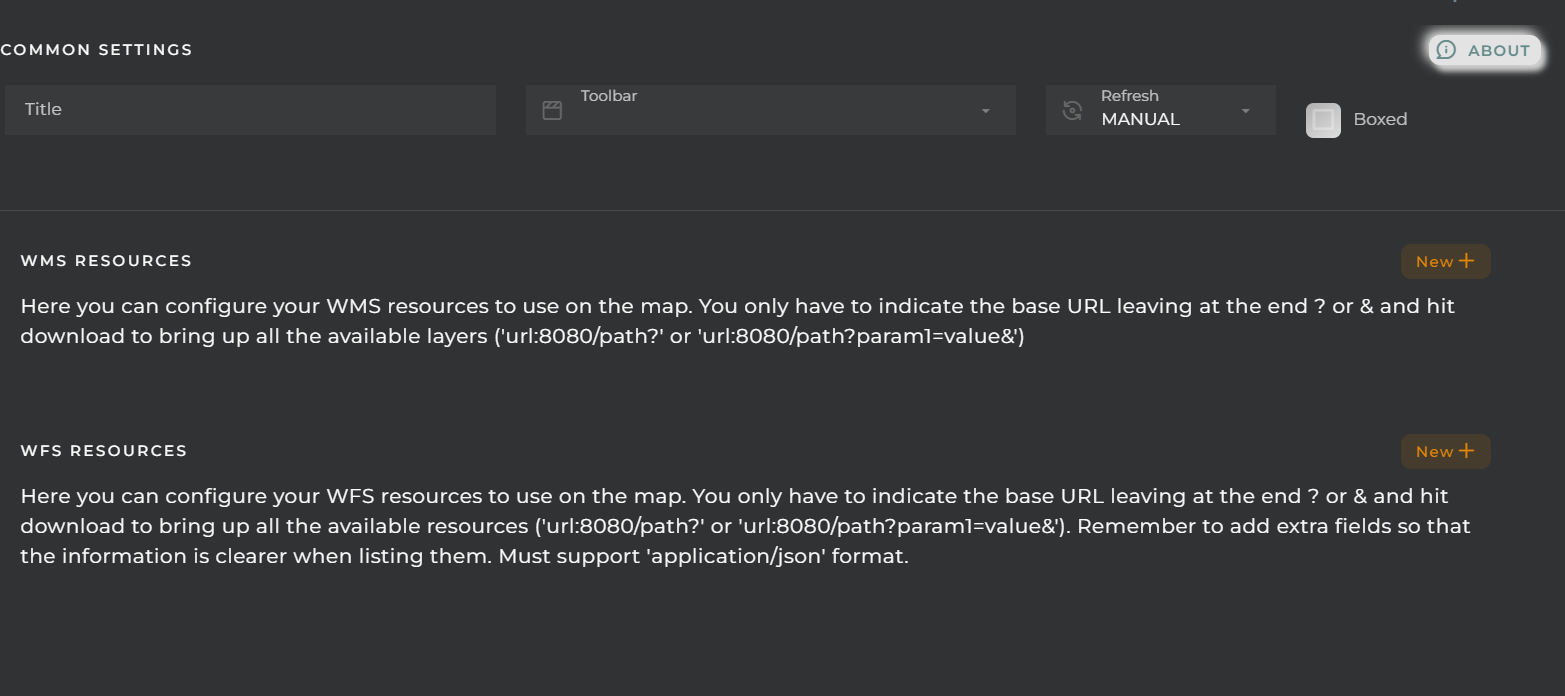
External resources
Advanced
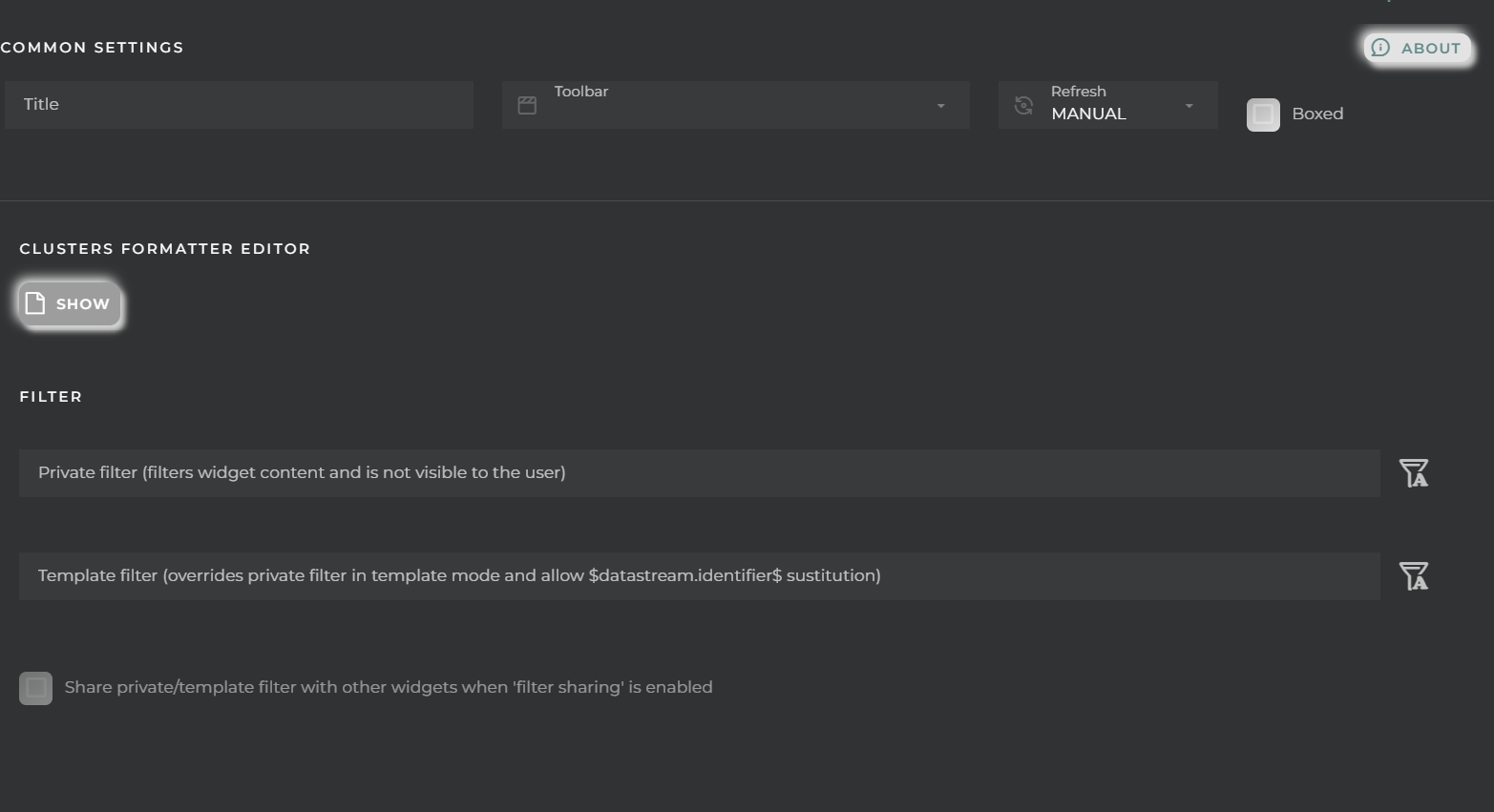
Editing of clusters and configuring various filters that will be applied to queries regardless of what the user may wish to filter later on.