Provisioning Functions Navigator
In this widget, you will find the provisioning functions configured for your organization.
How it Works

In the browser, you will find a list of provisioning functions along with the available actions for each, depending on the permissions you hold.
Widget Menu

From the widget’s action menu, you can perform the following:
- New provision function: Allows the execution of the wizard for creating provisioning functions (provided the necessary permissions are available).
- Capture screen: Takes a screenshot of the widget.
- Duplicate widget: Creates a duplicate of the widget on the dashboard.
- Copy widget: Copies the widget to another dashboard.
- Change widget location: Moves the widget to another dashboard.
Organization Selector
A user can manage the provisioning functions for organizations that are dependent on the user’s own organization. To switch between organizations, you must use the selector available at the top of the widget.
Actions on Time Series

For each time series, you can perform the following actions:
- Edit: Opens the editing wizard to modify the parameters of the provisioning function.
- Summary: Displays information on the configuration of the provisioning function within the widget itself.
- Delete: Removes the selected item.
Configuration
General
- Boxed: widget will be displayed with background in dahsboard.
- About: widget description in Markdown format.
- Title: widget title. It can be configured to remain fixed in the widget or only be displayed when it receives focus.
- Toolbar: configures the behavior of the widget bar on the dashboard, allowing you to hide it, hide it when not in use, or leave it always visible.
- Refresh Frequency: allows configuring the data refresh frequency displayed in the list.
- Extra actions: allows user to add new specific actions to the widget with your own code.
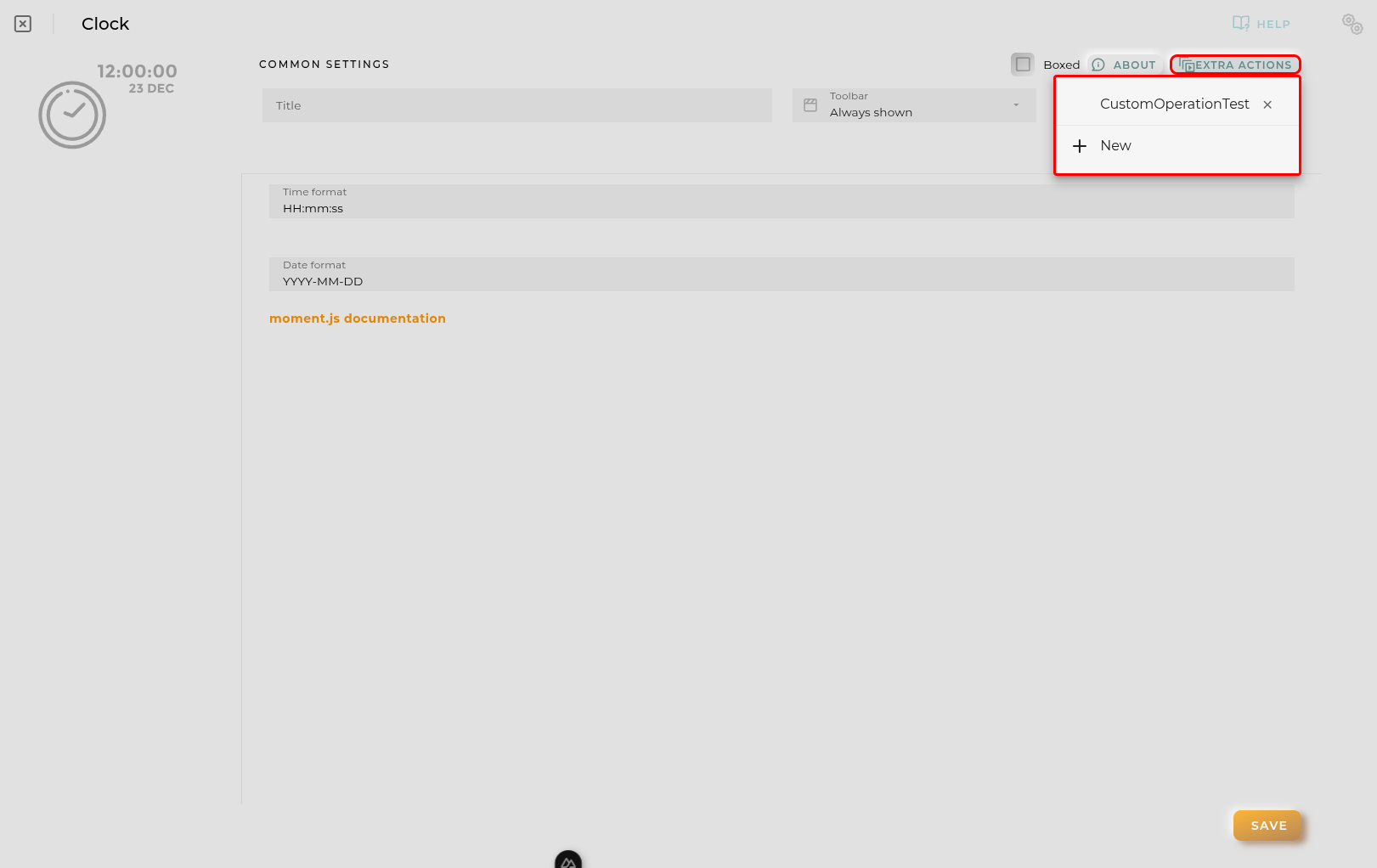
You can add a new one by pressing the New button.
Once you added a custom action it can be modified later by pressing the name in the list.
In order to remove the custom action click the delete icon button on the right.
In extra actions you can write your own code were you can open other dashboards, entities dashboards or execute wizards.
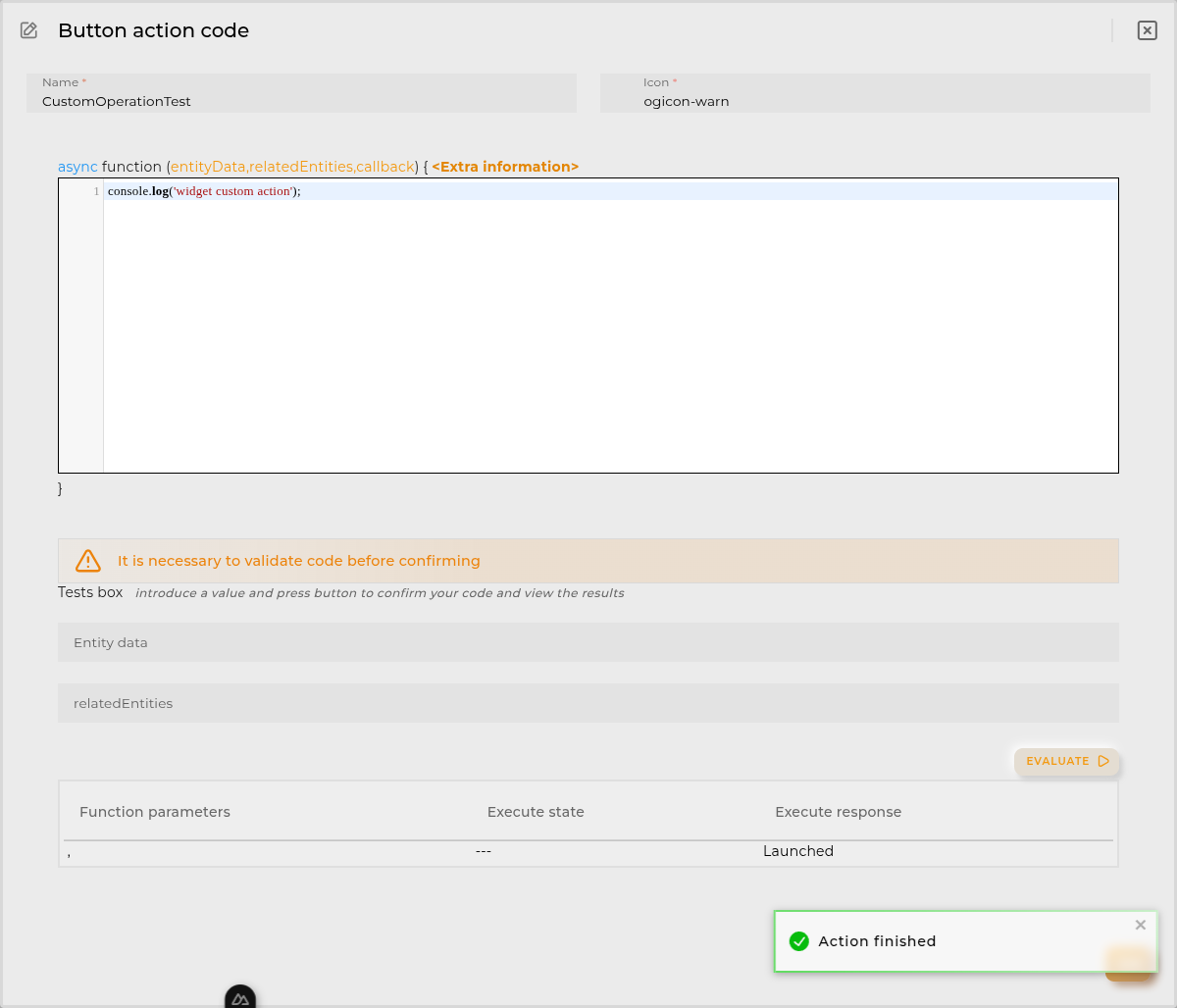
You can find all available functions and methods in Extra parameters